Customizing the Shop Page and Footer in Storeino
Overview
This guide explains how to customize your Shop Page and Footer using the Storeino Customizer. It includes managing shop-specific elements, sidebar configurations, and footer content for optimal design and functionality.
1. Accessing the Customizer
- Log in to Your Storeino Dashboard.
- Navigate to Customizer in the admin panel.
- In the Customizer interface, use the page selector at the top to choose Shop Page.
2. Customizing the Shop Page
Gray vs. White Parameter
- White Parameters: Active elements visible on the current page.
- Gray Parameters: Inactive elements or those not visible on the selected page.
Editable Shop Page Elements
- Header and Hero Section:
- These remain consistent across pages (covered in the Home Page customization guide).
- Shop Content:
- Navigate to Shop in the Customizer.
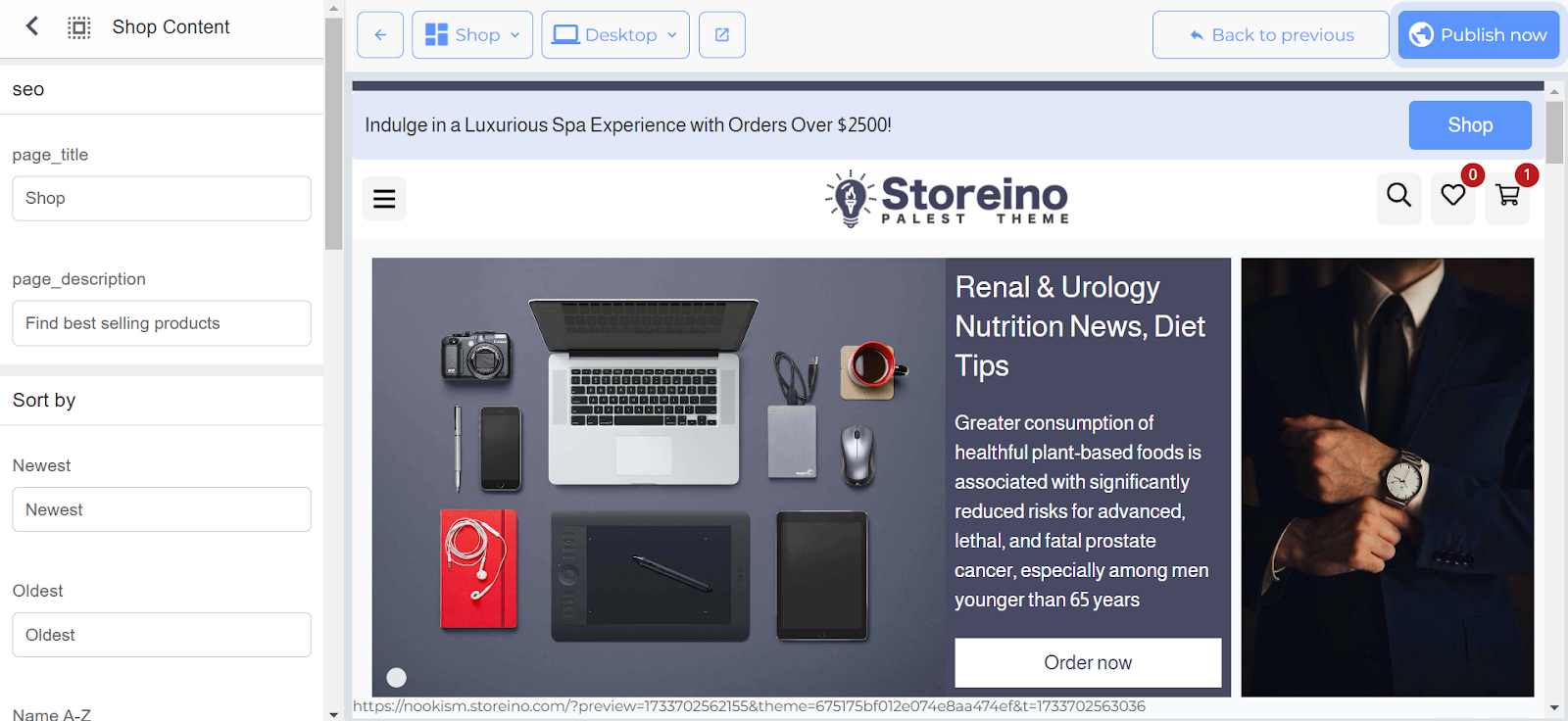
- Editable Options:
- Header Text: Modify the title displayed at the top of the shop page.
- Product Count Text: Edit or remove the text that shows the product count (e.g., “Found 12 products”).
- Max Items Per Page:
- Adjust the number of products displayed per page (default: 12).
- Example: Set to 2 for testing pagination.
- Product Size:
- Adjust the layout:
- Small: Displays 4 columns.
- Medium: Displays 3 columns.
- Large: Displays 2 columns.
- Adjust the layout:
- Pagination Style:
- Select between Box or Circle styles for page navigation buttons.
- Pagination Alignment:
- Align pagination to Start, Center, or End of the page.
- Shop Sidebar:
- Click Shop Sidebar in the Customizer to configure the sidebar elements.
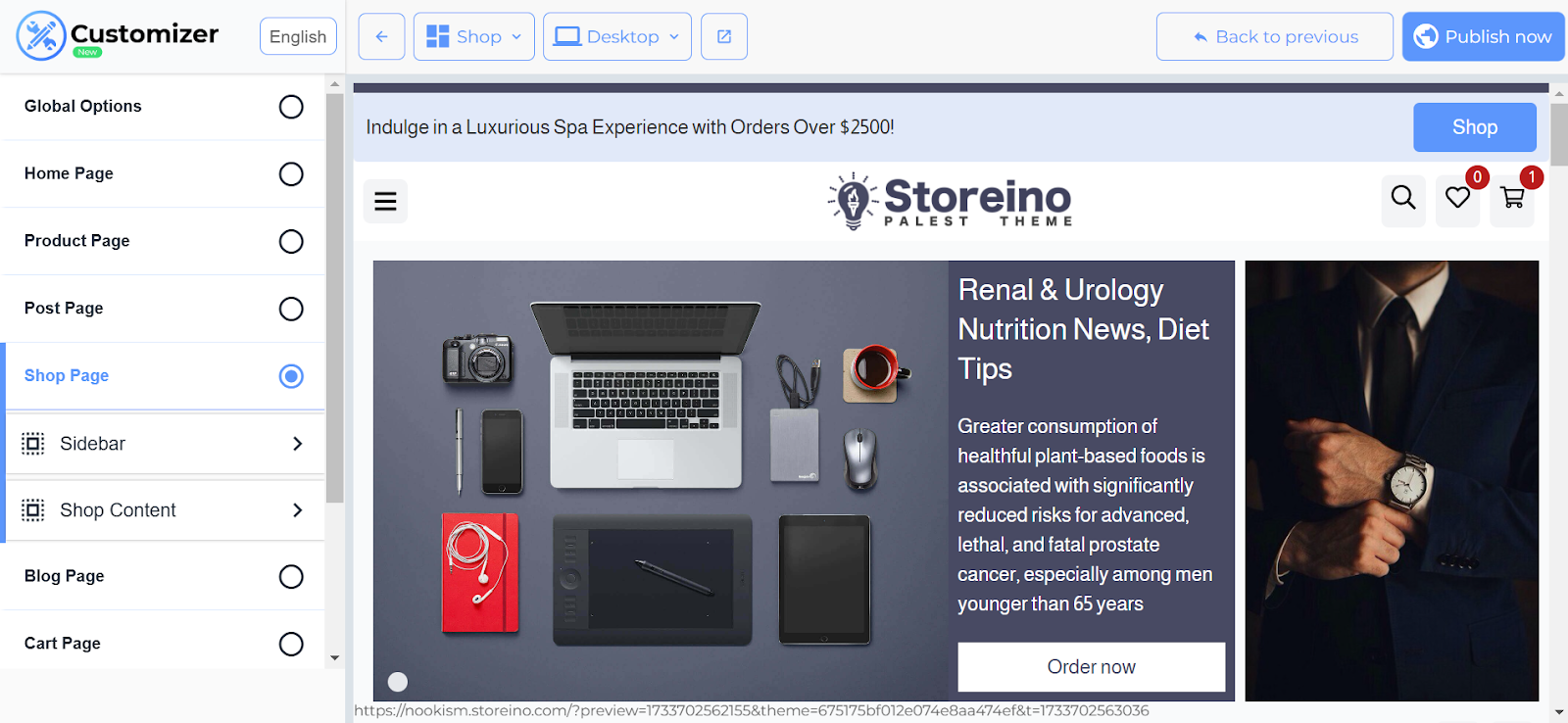
- Editable Sidebar Elements:
- Text Labels: Change text for filters (e.g., “Collections” to “Categories”).
- Toggle Filters:
- Show or hide specific filters (e.g., Filter by Price, Filter by Size, Filter by Color).
- Simply toggle the visibility of any sidebar element.
3. Customizing the Footer
Access Footer Settings
- In the Customizer, select Footer.
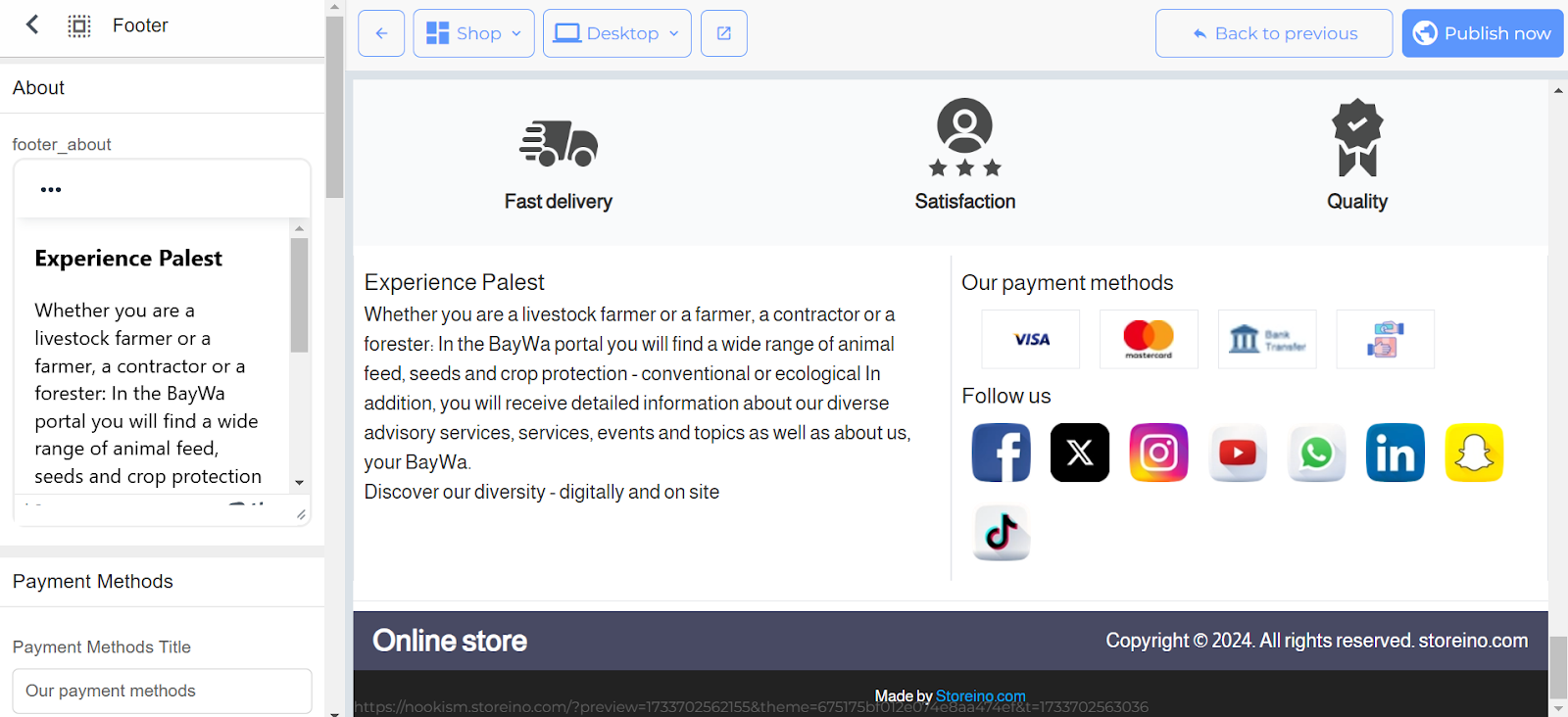
Editable Footer Elements
- About Us Section:
- Update the Logo by uploading a new image.
- Add or edit the About Us text.
- Footer Menu:
- Configure a separate navigation menu for the footer.
- Example: Set the Main Menu for the footer.
- Contact Information:
- Edit the store’s Address, Phone Number, and Email directly in the text fields.
- Newsletter Section:
- Customize the Newsletter Title and Placeholder Text for the email input field.
- Modify the Subscribe Button text.
- Add New Footer Items:
- Add new sections or links to the footer with a click of a button.
4. Publishing Changes
- Once all customizations are complete, click Publish to apply the changes to your store.