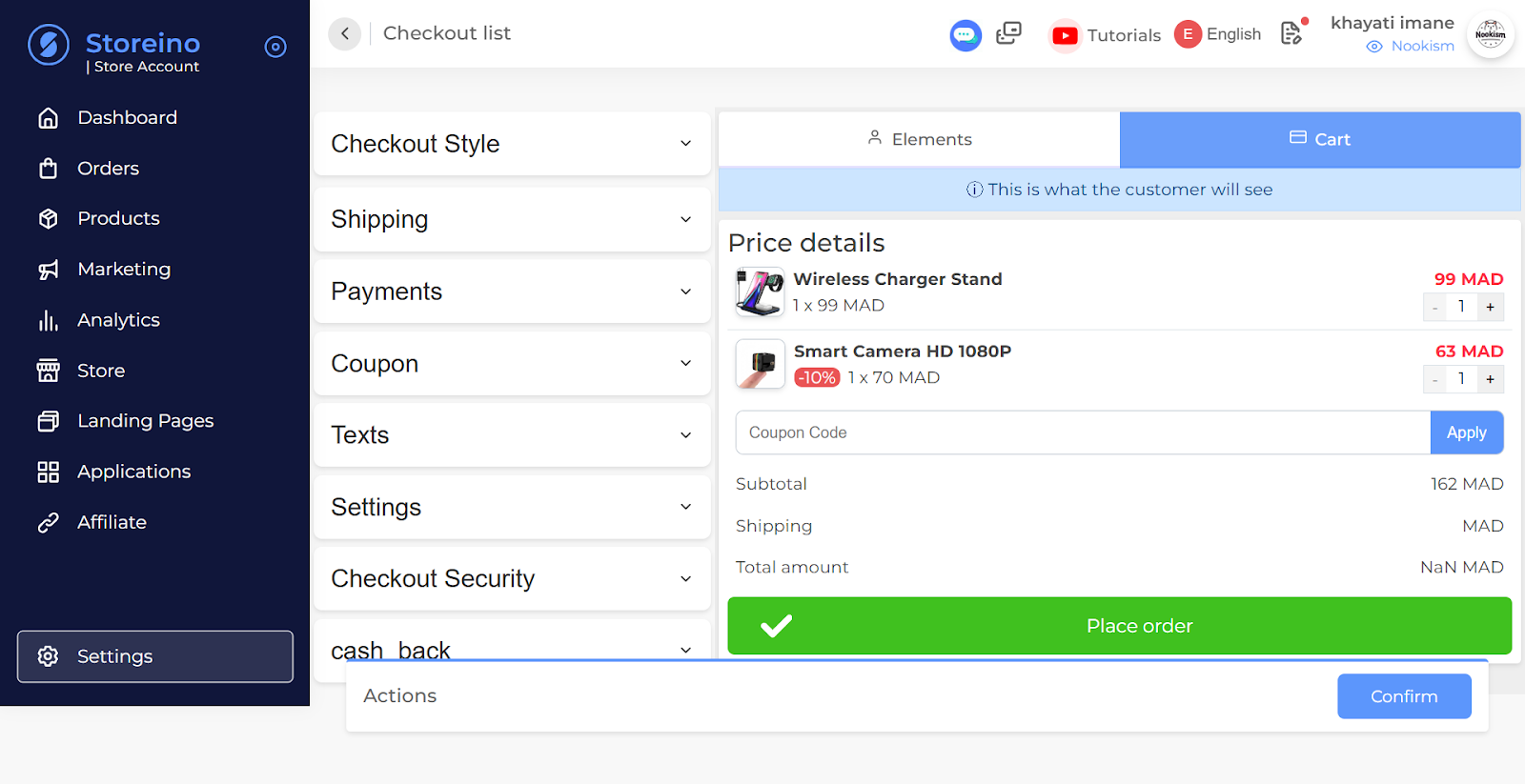
Checkout Settings
Overview
This interface allows you to customize various aspects of the checkout process, including shipping options, payment methods, coupon codes, and the overall layout of the checkout page.
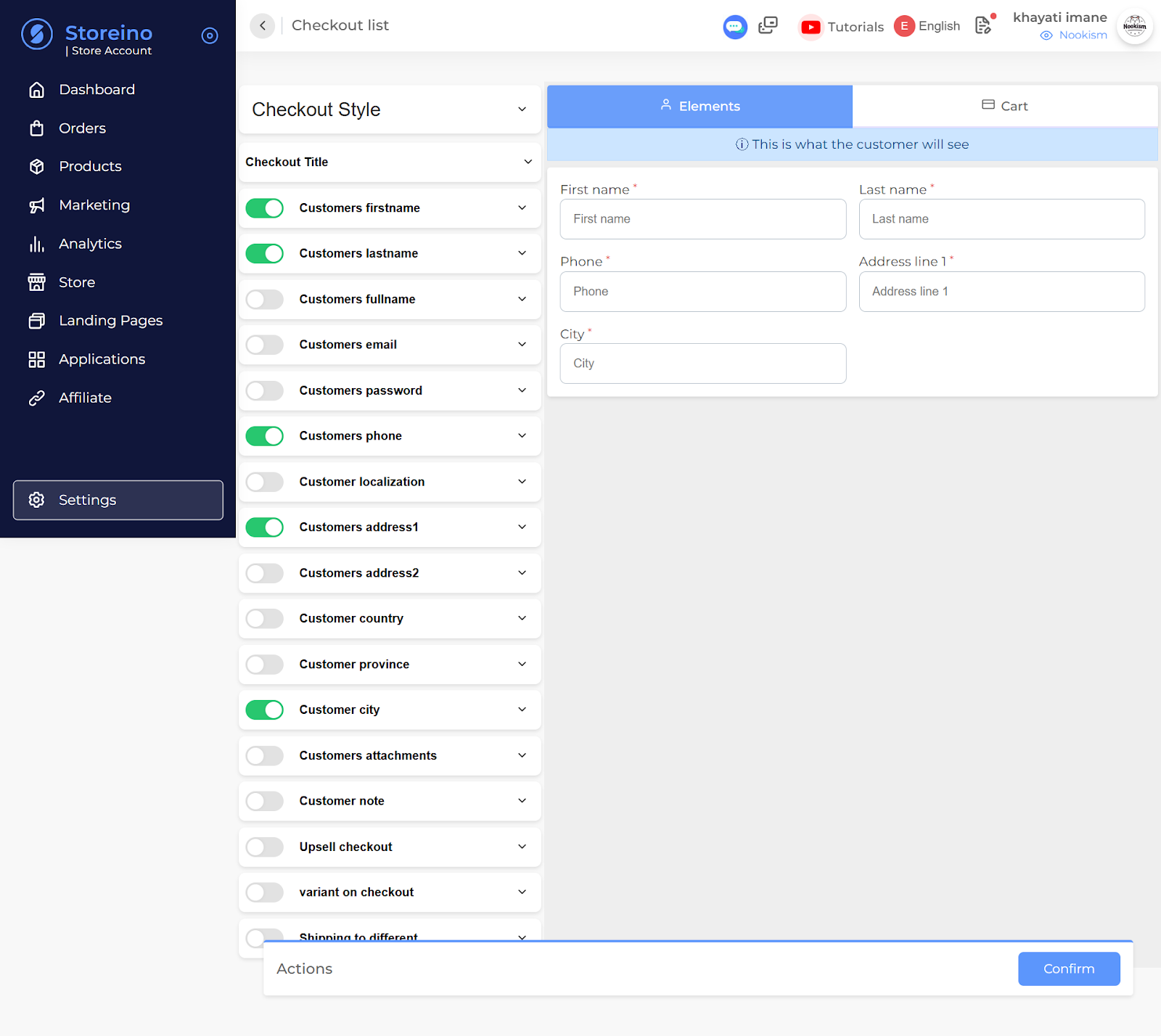
Customer Information
- Checkout Title: Customize the title displayed at the top of the checkout page.
- First Name: Determines whether the customer’s first name is required and displayed.
- Last Name: Determines whether the customer’s last name is required and displayed.
- Full Name: Determines whether the customer’s full name (first and last) is displayed.
- Phone: Determines whether the customer’s phone number is required and displayed.
- Email: Determines whether the customer’s email address is required and displayed.
- Password: Determines whether the customer is required to set a password during checkout.
- Localization: Determines whether the customer’s location information (country, province, city, etc.) is required and displayed.
- Address Lines: Determines whether the customer needs to provide multiple address lines.
- Attachments: Determines whether customers can upload attachments during checkout.
- Note: Determines whether customers can add a note to their order.
Upsell and Variant Options
- Upsell on Checkout: Enables or disables upsell offers during the checkout process.
- Variant on Checkout: Enables or disables product variant selection during checkout.
- Shipping to Different Address: Allows customers to choose a different shipping address than their billing address.
Actions
- Confirm: Saves the current checkout configuration.
Additional Considerations
- Testing: Thoroughly test the checkout configuration to ensure it functions as expected and provides a seamless user experience.
- User Experience: Consider the user’s perspective when making changes to the checkout process. Keep the checkout flow simple and easy to understand..
- Security: Implement appropriate security measures to protect customer data during the checkout process.
Checkout Style:
- Multiple button variations are displayed, each with different color combinations for text, background, and price.
- Users can visually select the desired style for their “Buy Now” buttons.
Color Pickers:
- Buy Now Color: Allows users to choose the color for the “Buy Now” button’s background.
- Text Color: Allows users to choose the color for the text on the button.
- Price Color: Allows users to choose the color for the price text on the button.
- Background Color: Allows users to choose the background color of the checkout page.
- Page Background Color: Allows users to choose the background color of the entire page.
Shipping:
- Hide shipping price: A toggle switch to hide or show the shipping price to customers
- Fix Shipping Price: A toggle switch to enable or disable a fixed shipping price.
- If enabled, a text input field appears where you can enter the fixed price.
- Select shipping company text: A text input field to customize the label for the shipping company selection.
- Error Message: A text input field to customize the error message displayed when no shipping company is available for the customer’s location.
- Free delivery from: A toggle switch to enable or disable free delivery for orders above a certain amount.
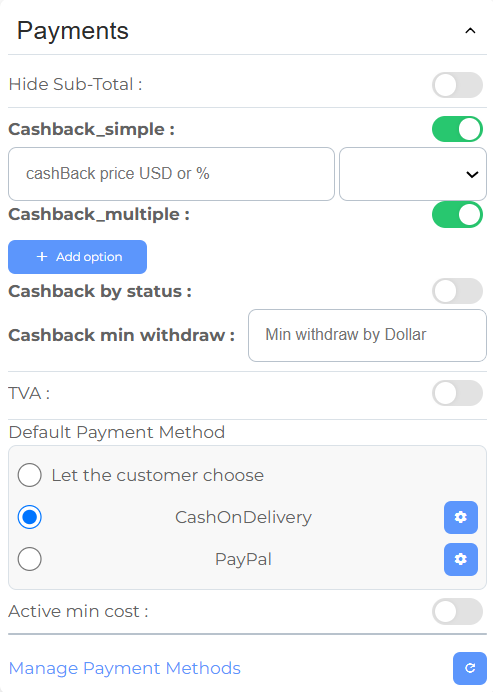
Payments: This section allows you to configure payment methods, including credit cards, PayPal, and other options.
- Hide Sub-Total: A toggle switch to hide or show the subtotal in the checkout process.
- Cashback_simple: A toggle switch to enable or disable a simple cashback system.
- cashBack_price USD or %: A dropdown to select whether the cashback is a fixed amount or a percentage.
- Cashback_multiple: A toggle switch to enable or disable multiple cashback options.
- + Add option: Button to add a new cashback option.
- Cashback by status: A toggle switch to enable or disable cashback based on customer status (e.g., new customers, returning customers).
- Cashback min withdraw: A text input field to set the minimum withdrawal amount for cashback.
- TVA: A toggle switch to enable or disable a tax (TVA stands for “Taxe sur la Valeur Ajoutée” in French).
- Default Payment Method: Allows you to set a default payment method for customers or let them choose.
- Let the customer choose: Allows customers to select their preferred payment method.
- CashOnDelivery: Enables cash on delivery as a payment option.
- PayPal: Enables PayPal as a payment option.
- Active min cost: A text input field to set the minimum order amount for certain payment methods.
- Manage Payment Methods: A button that links to settings > payments page.
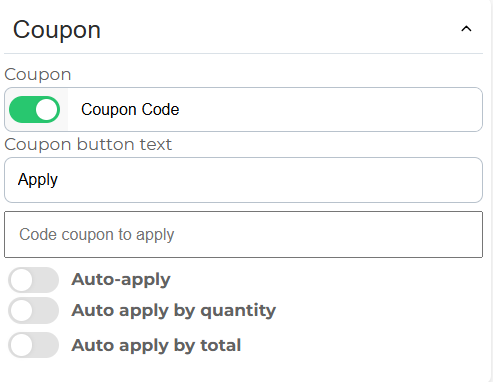
Coupon: This section allows you to enable or disable coupons and set their conditions.
- Coupon Code: A toggle switch to enable or disable the use of coupon codes.
- Coupon Button Text: A text input field to customize the text displayed on the coupon button.
- Code coupon to apply: A text input field to enter a specific coupon code to be automatically applied.
- Auto-apply: A toggle switch to enable or disable automatic application of coupons based on certain conditions.
- Auto-apply by quantity: Enables automatic application of coupons when a certain quantity of products is reached.
- Auto-apply by total: Enables automatic application of coupons when the total order amount reaches a certain threshold.
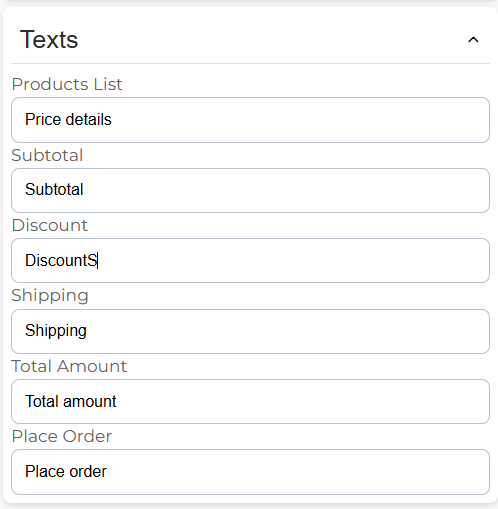
Texts: This section allows you to customize the text displayed on the checkout page, such as button labels and error messages.
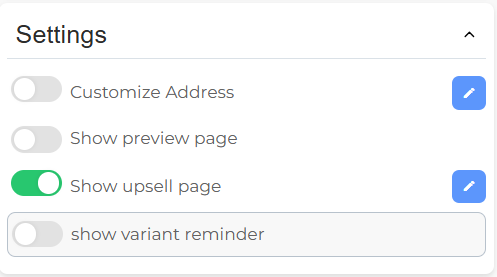
Checkout settings:
- Customize Address: This toggle allows you to enable or disable the option for customers to customize their shipping address during the checkout process.
- Show Preview Page: This toggle allows you to enable or disable a preview page before the customer completes their order. This page provides a summary of the order details, including items, shipping costs, and taxes.
- Show Upsell Page: This toggle allows you to enable or disable an upsell page during the checkout process. This page can display additional products or offers that the customer might be interested in.
- Show Variant Reminder: This toggle allows you to enable or disable a reminder to the customer about product variants (e.g., size, color) they may have missed during the checkout process.
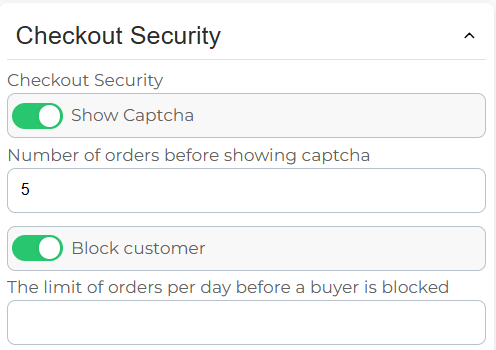
Checkout Security:
- Show Captcha: A toggle switch to enable or disable the display of a CAPTCHA during the checkout process. This helps prevent automated bots from placing orders.
- Number of orders before showing captcha: A text input field to set the number of orders a customer can place before being prompted to complete a CAPTCHA.
- Block customer: A toggle switch to enable or disable blocking customers who exceed a certain number of orders per day.
- The limit of orders per day before a buyer is blocked: A text input field to set the maximum number of orders allowed per day before a customer is blocked.
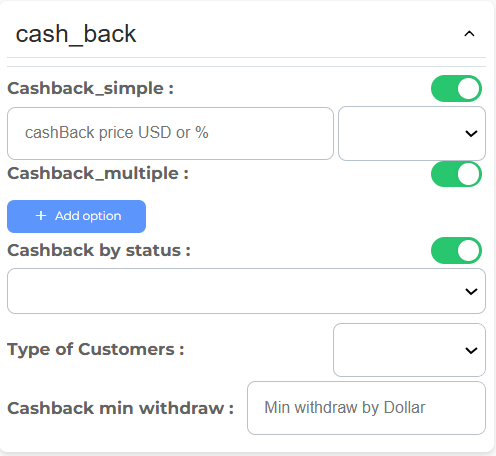
Cash Back: This section allows you to enable or disable cash back options for customers.
- Cashback_simple: A toggle switch to enable or disable a simple cashback system.
- cashBack price USD or %: A dropdown to select whether the cashback is a fixed amount in USD or a percentage of the purchase price.
- Cashback_multiple: A toggle switch to enable or disable multiple cashback options.
- + Add option: Button to add a new cashback option with specific conditions and rewards.
- Cashback by status: A toggle switch to enable or disable cashback based on customer status (e.g., new customers, returning customers).
- Type of Customers: A dropdown to select the specific customer group to apply the cashback to.
- Cashback min withdraw: A text input field to set the minimum withdrawal amount for cashback.
Elements
- This is what the customer will see: A preview of the checkout page as the customer would see it.
- Price Details: Displays the items in the cart, their quantities, prices, and the total amount.
- Coupon Code: Allows customers to enter a coupon code for a discount.
- Subtotal: The total cost of the items before any discounts or taxes.
- Shipping: The shipping cost.
- Total Amount: The final total amount to be paid.
- Place Order: Button to complete the checkout process.
Actions:
- Confirm: Saves the checkout configuration changes.