Maintenance mode
The Maintenance Mode allows you to block access to your store while you make modifications or configurations. This ensures that no visitors see changes in progress until your store is fully ready.
Steps to Activate Maintenance Mode:
- Access Settings
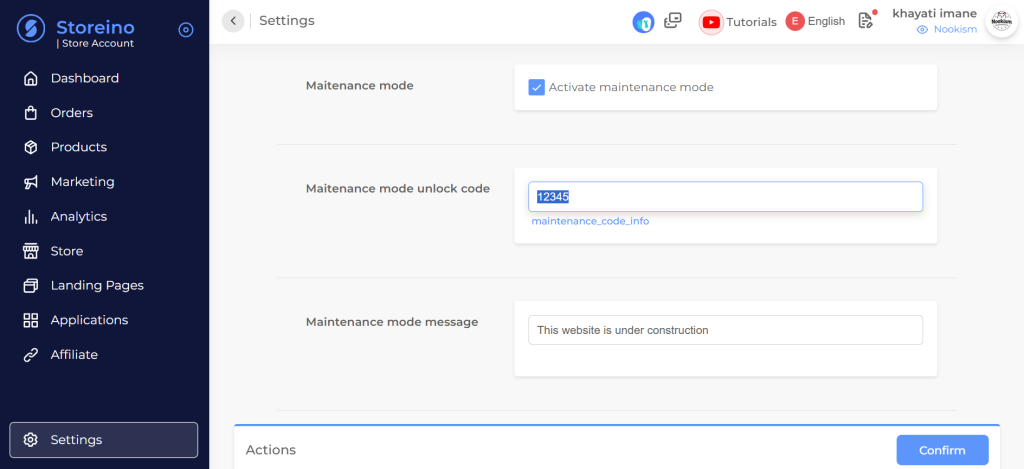
- Go to the General Settings tab in your store dashboard.
- Enable Maintenance Mode
- Check the option Enable Maintenance Mode to activate this feature.
- Set a Limited Access Password
- Enter a password.
- This password can be shared with your team members so they can temporarily access the store.
- Configure the Announcement Message
- Write a customized message that will be displayed to visitors when they try to access your store.
- Example: “The store is currently under maintenance. Please check back later!”
- Test Access
- To verify that Maintenance Mode is activated, try accessing your store from another browser or device.
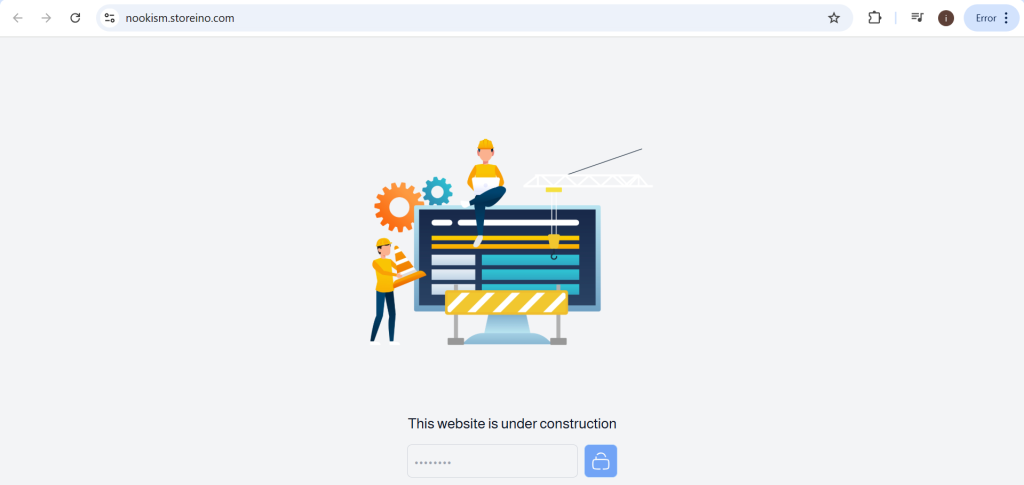
- You will be prompted to enter the password to access the store.
Expected Result:
Once these steps are completed, only users with the password will be able to access your store during maintenance. All other visitors will see the announcement message you configured.
Note: Once your modifications are complete, return to the settings and disable Maintenance Mode to make the store accessible to the public.