Country Blocker
A country blocker is a feature or tool that restricts access to an application or website based on the user’s geographical location. This functionality is implemented for various reasons, such as compliance with regional regulations, content licensing agreements, security concerns, or to customize user experiences for specific regions.
Key Aspects of a Country Blocker
1. Geographic Restriction
- Purpose: The main goal of a country blocker is to limit access to an application or website based on the user’s geographic location.
- Compliance: It ensures adherence to country-specific legal and regulatory requirements.
2. Content Control
- Licensing Agreements: Used to enforce agreements for media or content authorized for specific regions.
- Censorship: In some cases, it complies with censorship laws or restrictions imposed by certain countries.
3. Security and Privacy
- Unauthorized Access Prevention: Country blockers can prevent access from regions with a higher risk of malicious activities.
- Data Protection: They help comply with regional data privacy laws, such as GDPR in Europe or CCPA in the U.S.
4. Personalized User Experience
- Localization: Tailors content, language, or user interfaces for specific countries to enhance user experience.
- Regional Promotions: Businesses can target specific regions with promotions or services, ensuring only relevant users access them.
5. Implementation
- IP Geolocation: Country blocking relies on IP geolocation, where a user’s IP address is analyzed to determine their location.
- Customizable Rules: Applications often allow administrators to configure blocking rules based on business needs.
6. Challenges and Considerations
- Accuracy Issues:
- False Positives: Legitimate users may be mistakenly blocked.
- False Negatives: Unintended users may bypass restrictions.
- User Privacy: Handle user data responsibly and in compliance with data protection laws.
- Transparency: Clearly communicate with users about access restrictions and the reasons for implementing a country blocker.
Common Use Cases
- Legal Compliance: Restrict access to applications in countries where operations are restricted by law.
- Regional Content Licensing: Control access to licensed media or content.
- Security Measures: Prevent access from regions associated with higher cybersecurity risks.
- Improved User Experience: Offer localized services, promotions, and interfaces tailored to specific regions.
Advantages of a Country Blocker
- Enhanced Security: Reduces the risk of unauthorized access and fraud.
- Compliance Assurance: Helps meet local regulatory requirements.
- Targeted Marketing: Focuses resources on regions with potential for growth.
- Cost Efficiency: Avoids unnecessary resource allocation for regions outside the target market.
Best Practices
- Monitor IP Geolocation Accuracy: Regularly update geolocation databases to ensure accurate country identification.
- Inform Users Transparently: Display clear messages explaining why access is restricted and provide alternatives if possible.
- Allow Flexibility: Provide administrators with customizable options for country blocking based on business needs.
- Consider VPNs: Take into account the potential for users to bypass restrictions using VPNs or proxies and plan accordingly.
How to set up and use Country Blocker
navigate to Storeino App Marketplace, look for country blocker app, install it and activate it.
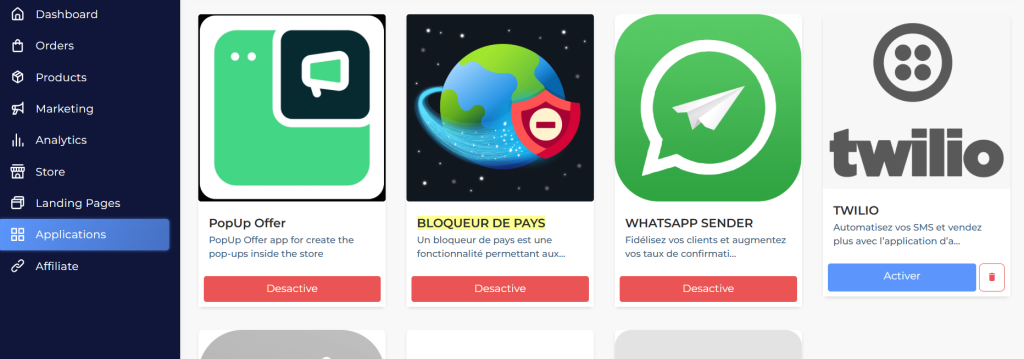
Now you can open the app, navigate to the Block by Country tab to manage country-based visitor restrictions.
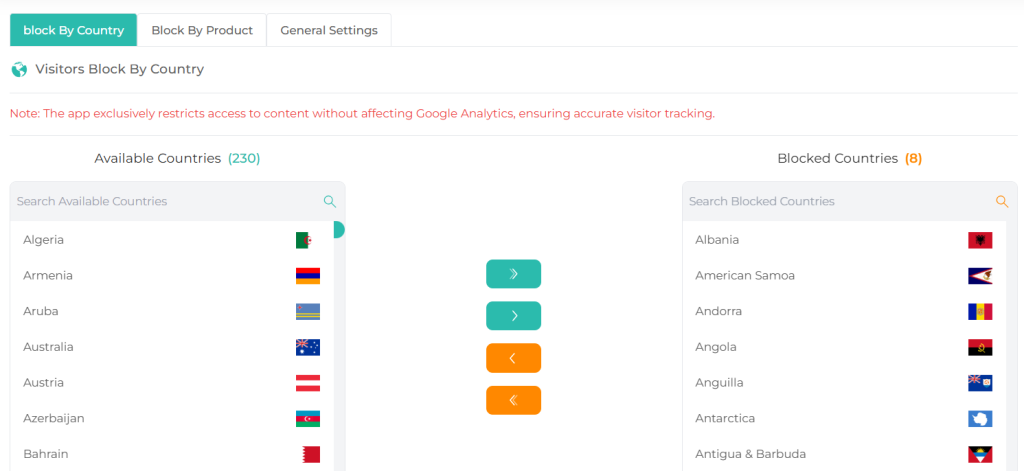
Available Countries
- This section lists all countries where visitors can currently access your website.
- The total number of available countries is displayed in parentheses (e.g., 230).
- Use the search bar at the top to quickly find a country.
Blocked Countries
- This section lists the countries currently blocked from accessing your website.
- The total number of blocked countries is displayed in parentheses.
- Use the search bar to locate a blocked country.
Navigation Controls
- Double Arrows (>> / <<): Move all countries between “Available” and “Blocked” lists.
- Single Arrows (>/<): Move selected countries between “Available” and “Blocked” lists.
- Highlight a country and use the appropriate arrow to make changes.
How to Block or Unblock a Country
- Blocking a Country:
- Locate the country in the Available Countries list using the search bar or scrolling.
- Select the country and click the single arrow (
>). - Confirm that the country has moved to the Blocked Countries list.
- Unblocking a Country:
- Locate the country in the Blocked Countries list.
- Select the country and click the single arrow (
<). - Confirm that the country has moved back to the Available Countries list.
- Blocking/Unblocking Multiple Countries:
- Use the checkboxes to select multiple countries from the list.
- Click the appropriate arrow to move the selected countries.
- Blocking/Unblocking All Countries:
- Use the double arrows (
>>or<<) to move all countries between lists.
- Use the double arrows (
Block by Products
The Visitors Block by Products feature allows you to restrict access to specific product pages based on your chosen configuration. Unlike the country-blocking feature, this option targets product-level access, ensuring you maintain control over visibility for specific items.
- Enable Block Product By Country
- Check this box to activate product-specific restrictions.
- Note: Activating this feature does not block access to the entire store. It only restricts access to product pages for items listed under “Blocked Products.”
- Available Products
- This section lists all products currently accessible to visitors.
- The total number of available products is displayed in parentheses (e.g., 6).
- Use the search bar at the top to quickly locate a product.
- Blocked Products
- This section displays products that are currently blocked.
- The total number of blocked products is displayed in parentheses (e.g., 1).
- Use the search bar to find blocked products quickly.
- Navigation Controls
- Single Arrow (>/<): Move a selected product between “Available” and “Blocked” lists.
- Highlight a product and click the appropriate arrow to change its status.
How to Block or Unblock a Product
- Blocking a Product:
- Locate the product in the Available Products list using the search bar or scrolling.
- Select the product and click the single arrow (
>). - Confirm that the product has moved to the Blocked Products list.
- Unblocking a Product:
- Locate the product in the Blocked Products list.
- Select the product and click the single arrow (
<). - Confirm that the product has moved back to the Available Products list.
Notes
- The product-blocking feature ensures restricted product pages are hidden from unauthorized visitors.
- Visitors can still access other parts of the store unless they are blocked under the Block by Country feature.
Blocked Page Settings
The Blocked Page Settings feature allows you to customize the content displayed to visitors when they attempt to access blocked products or regions. You can configure error codes, titles, subtitles, colors and redirection options for a seamless user experience.
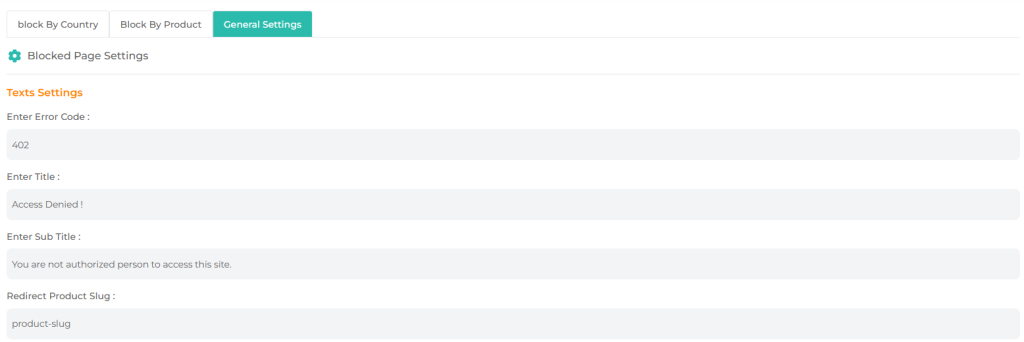
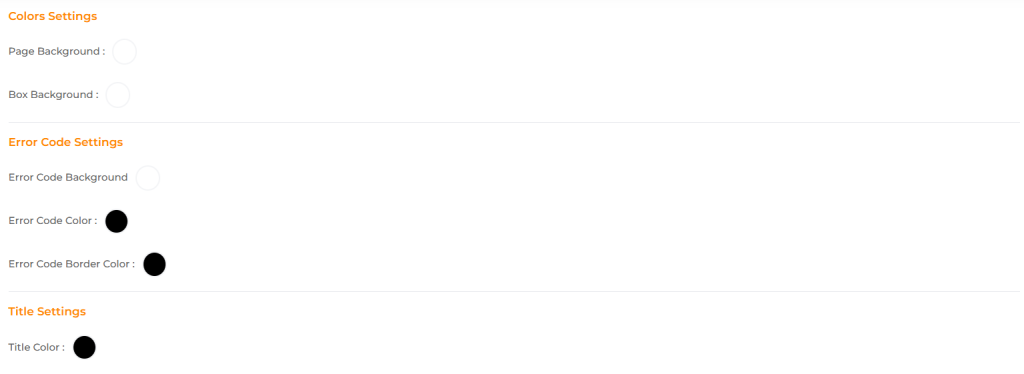
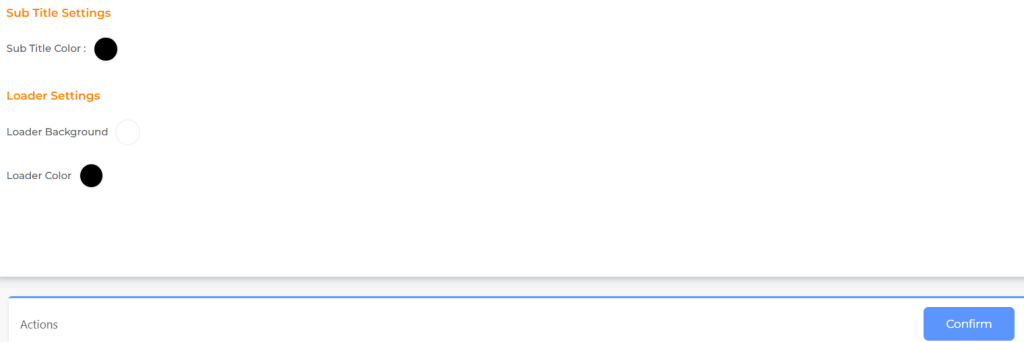
When you’re set, you can confirm changes to see them live !