Support and Troubleshooting
How to Contact Support
This guide will walk you through the two main ways to contact Storeino support: Support Chat and Creating a Support Ticket.
Option 1: Using the Support Chat
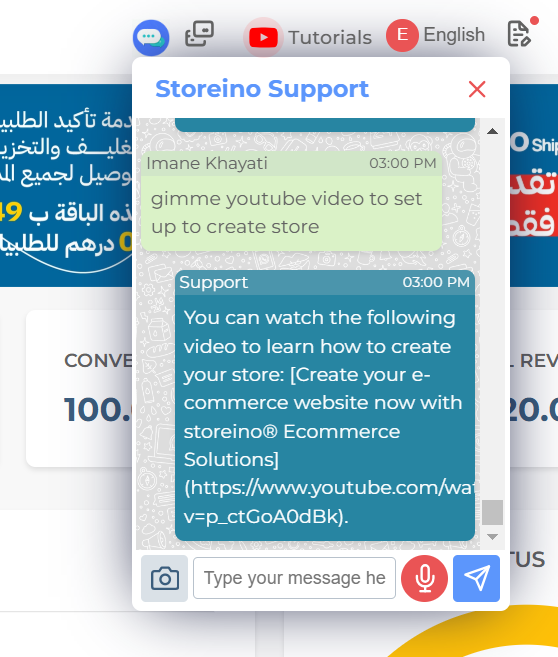
- Locate the Support Chat:
- After logging into your Storeino account, find the Support Chat icon at the top of your dashboard.
- Initiating a Query: Type your question or request in the input field. Optionally, use the voice input button for audio queries.
- Receiving Responses: Responses are displayed in real-time. Links and resources (e.g., tutorial videos) can be shared for further assistance.
- Navigating Shared Links: Click on the provided link to access external resources (e.g., YouTube tutorials).
- Send an Image: Click the image icon, upload a screenshot or photo related to your issue. If you select the wrong image, click Cancel and upload the correct one. Once ready, click Send.
Option 2: Creating a Support Ticket
- Navigate to the Support Section:
- In the left menu of your manager dashboard, click Support.
- Select Create Ticket.
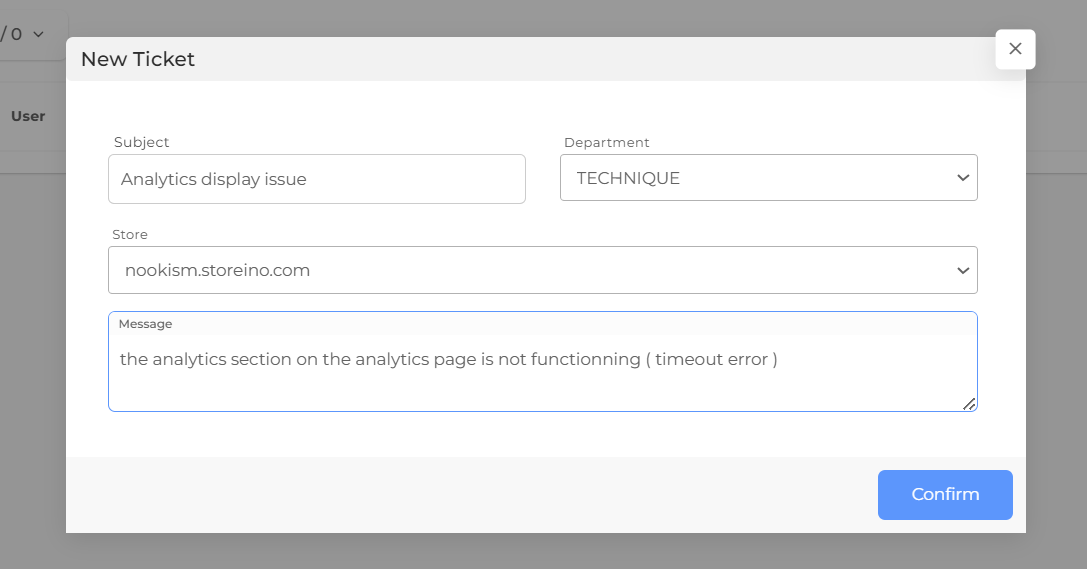
- Fill Out the Ticket Form:
- Subject: Briefly describe your issue (e.g., “Checkout button not working”).
- Department: Choose the relevant department (e.g., Technical).
- Store: If you manage multiple stores, select the store with the issue.
- Message: Provide a detailed description of the problem.
- Submit the Ticket:
- Click Confirm to create your ticket.
- The ticket will be marked as Open, and the support team will begin working on your issue.
- View and Respond to Your Ticket:
- Click View under the Actions column to open your ticket.
- On the left, review the ticket details.
- On the right, check for replies from the support team.
Additional Tips
- For faster assistance, provide clear and detailed descriptions of your problem.
- Use screenshots or voice recordings to clarify your issue when necessary.
- Check the Replies section of your ticket for updates and solutions.