How to Create a Zone and Set Variable Shipping Prices
Follow these steps to configure zones and enable variable shipping prices in your Storeino store:
Step 1: Add Locations and Countries
- Navigate to Locations:
- Go to Dashboard > Settings > Delivery > Locations.
- Click + Add new locations to create your desired locations and countries.

Step 2: Set Shipping Companies
- Access Shipping Companies:
- Go to Dashboard > Settings > Delivery > Shipping companies.
- Create or Select Shipping Companies:
- Add a new shipping company by filling in its name, uploading a logo, and linking it to an existing shipping configuration.
- Alternatively, select an existing company from the list.
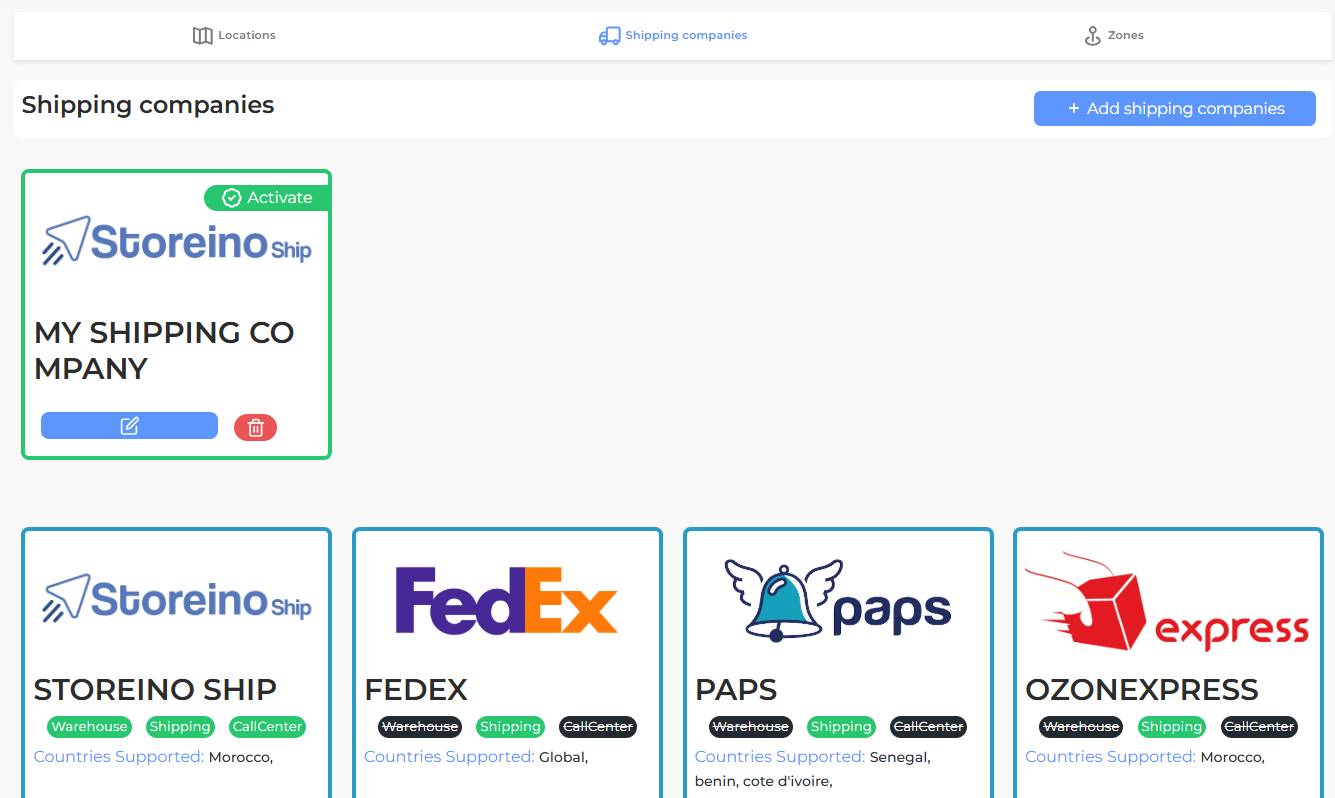
Step 3: Create a New Zone
- Navigate to Zones:
- Go to Dashboard > Settings > Delivery > Zones.
- Add Zone Details:
- Click Create a new zone.
- Fill in the zone name and description.
- Assign the shipping companies you configured earlier.
- Select the countries, provinces, and cities added in the Locations section.
- Confirm the Zone:
- Click Confirm to finalize the zone setup.
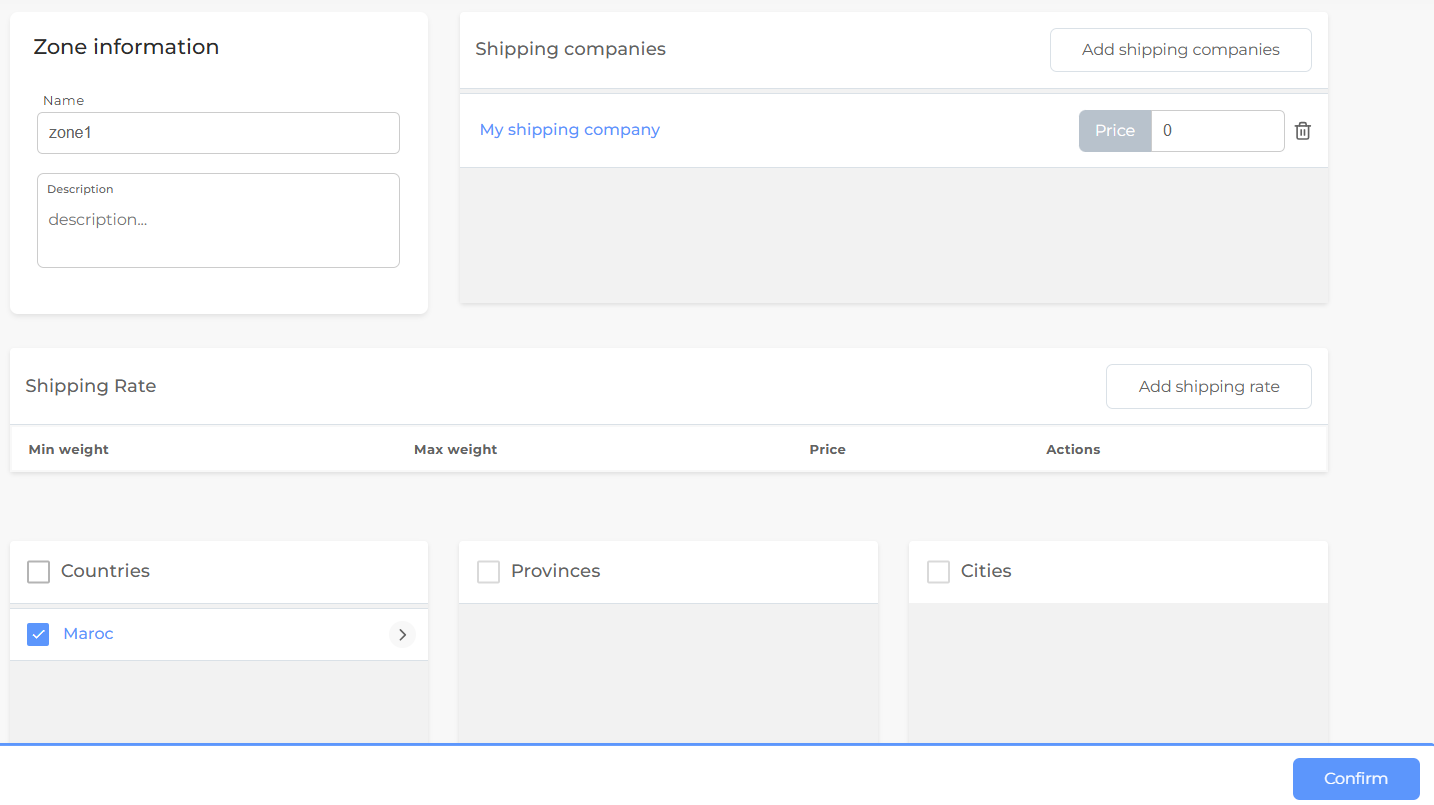
Step 4: Enable Variable Shipping Prices
- Navigate to Checkout Settings:
- Go to Dashboard > Settings > Checkout > Cart section.
- Modify Shipping Price:
- Expand the Shipping section.
- Disable the Fixed shipping price toggle to allow variable shipping pricing.
- Save Changes:
- Click Confirm to save the updated settings.
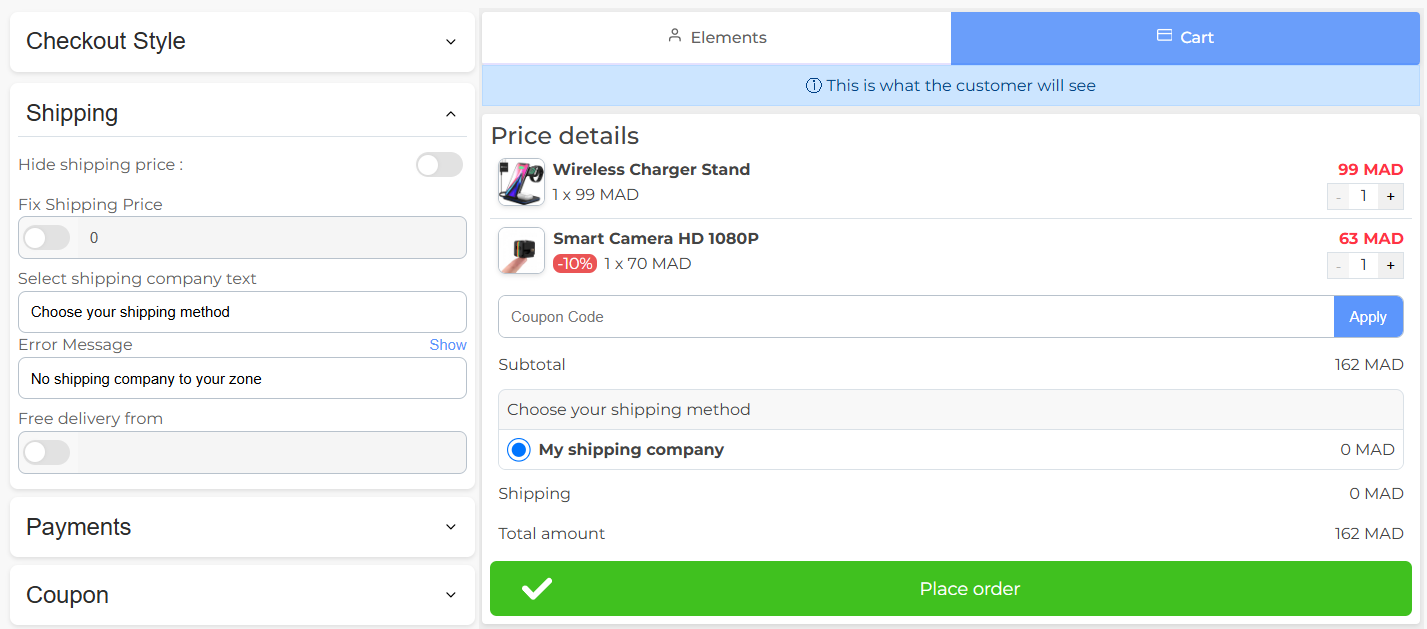
Outcome
- Customers can now see all available shipping companies and their prices during checkout.
- They can select the shipping option that suits their needs.