Changing Your Password
Changing your password in Storeino is an essential step for maintaining the security of your account. Follow the steps below to update your password successfully.
Step 1: Switch to the Manager Account
- Log into your Storeino account.
- Go to the top-right corner of the screen.
- Click on the account icon and select Back to Manager from the dropdown menu.
- This will switch you to the Manager dashboard.
Step 2: Verify Your Email Address
- In the Manager dashboard, check for a Verify Your Email button.
- If your email is not verified, follow the instructions to verify it first.
- Verifying your email ensures you can proceed with password updates.
Step 3: Access Your Profile
- Go to the top-right corner of the screen again and click on the account icon.
- Select Profile from the dropdown menu.
- This will open the details of your account, including user and store information.
Step 4: Update Your Password
- In the Profile section, click on Update User.
- A page with all your account details (name, email, phone number, etc.) will appear.
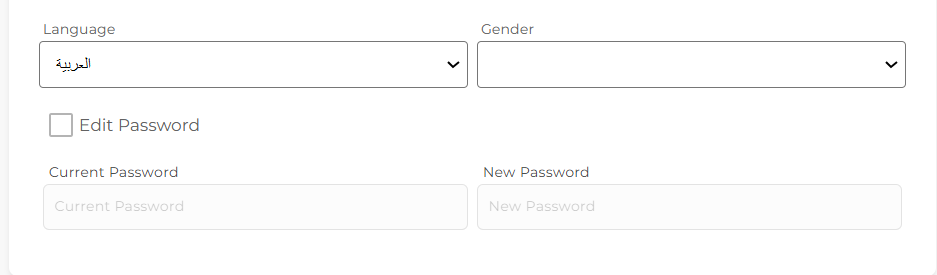
- Scroll down to the Password section located under the language settings.
- Click on Edit Password.
- Enter your new password in the provided field.
- Re-type your new password to confirm it.
Step 5: Save Changes
- Once you’ve entered your new password, click on Confirm to save the changes.
- Your password will now be updated, and you can use it to log into your account.
Important Notes
- Ensure your new password is strong, including a mix of uppercase and lowercase letters, numbers, and special characters.
- Keep your password secure and avoid sharing it with others.
- If you forget your password, use the Forgot Password option on the login page to reset it.