Mega Menu Application
About the App
The Mega Menu App provides an intuitive interface for e-commerce store owners to create, customize, and manage their navigation menus. It offers a versatile way to organize collections, pages, and blogs into a structured menu, improving navigation and user experience.

Key Features
- Dynamic Menu Creation: Add collections, pages, and blogs to build hierarchical navigation structures.
- Customizable Menus: Tailor menus to match the store’s branding and layout.
- Intuitive Interface: Easily manage menu items with drag-and-drop functionality.
- Preview & Adjustments: Visualize menus before publishing for a seamless integration.
Set up and installation
- Access the Mega Menu App:
- Open the Apps Marketplace, look for Mega Menu app and click on enable.
- Once enabled you can click on the icon to customize the app options.
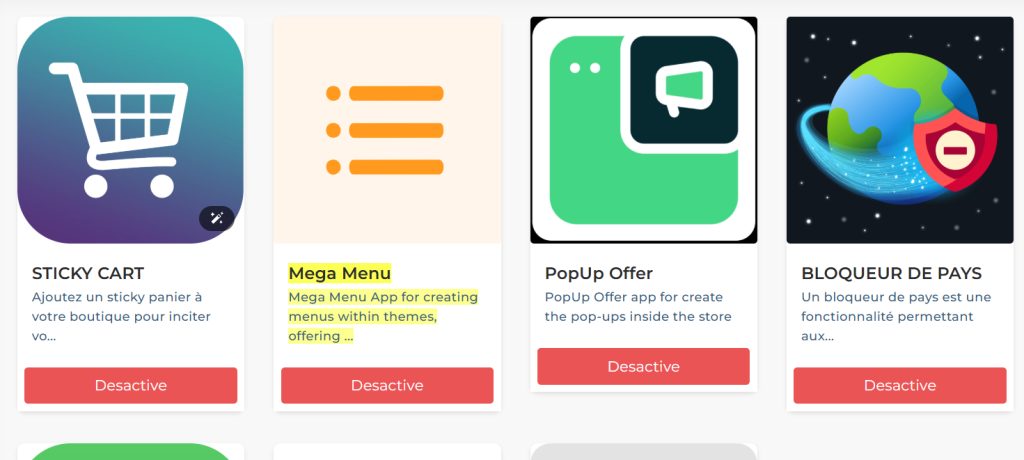
- Creating a New Menu:
- On the dashboard you can see a button “Add nenu”, click on it to create a new one.
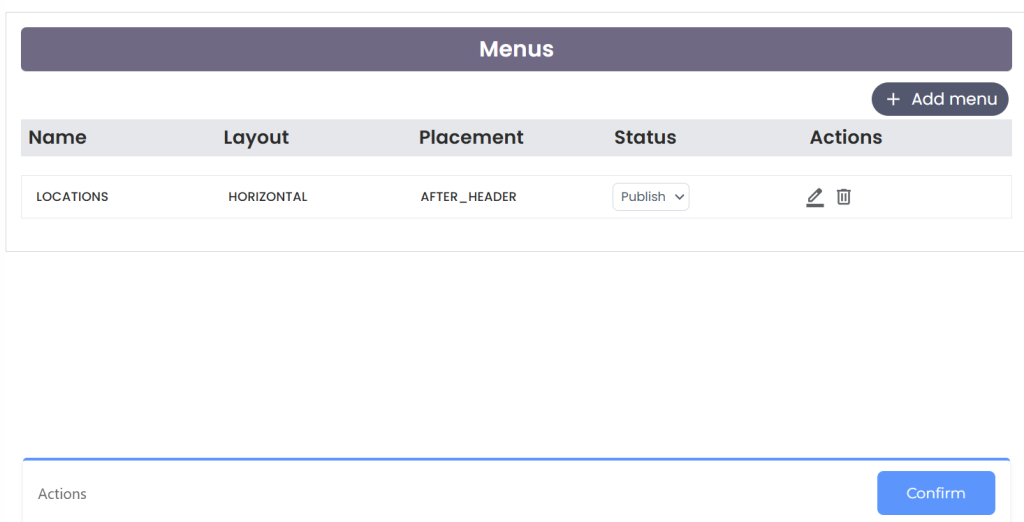
- Enter a Menu Name in the provided input field at the top of the interface.
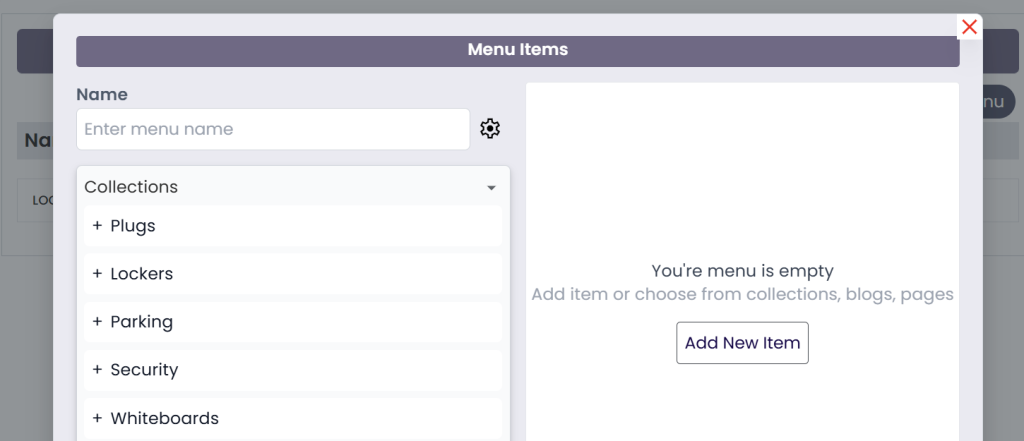
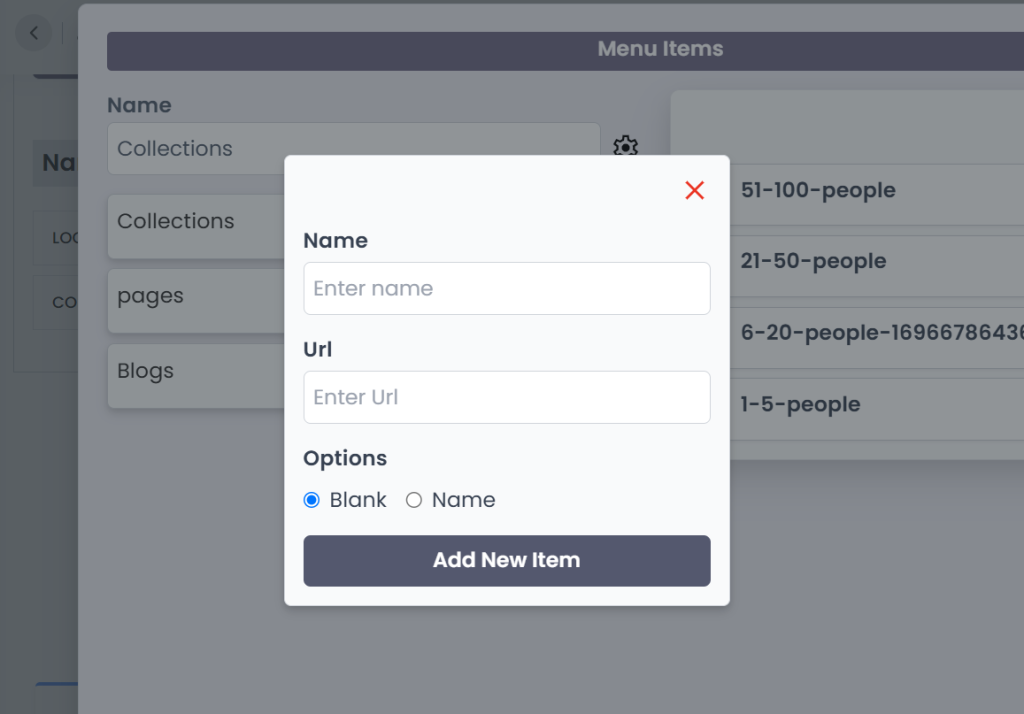
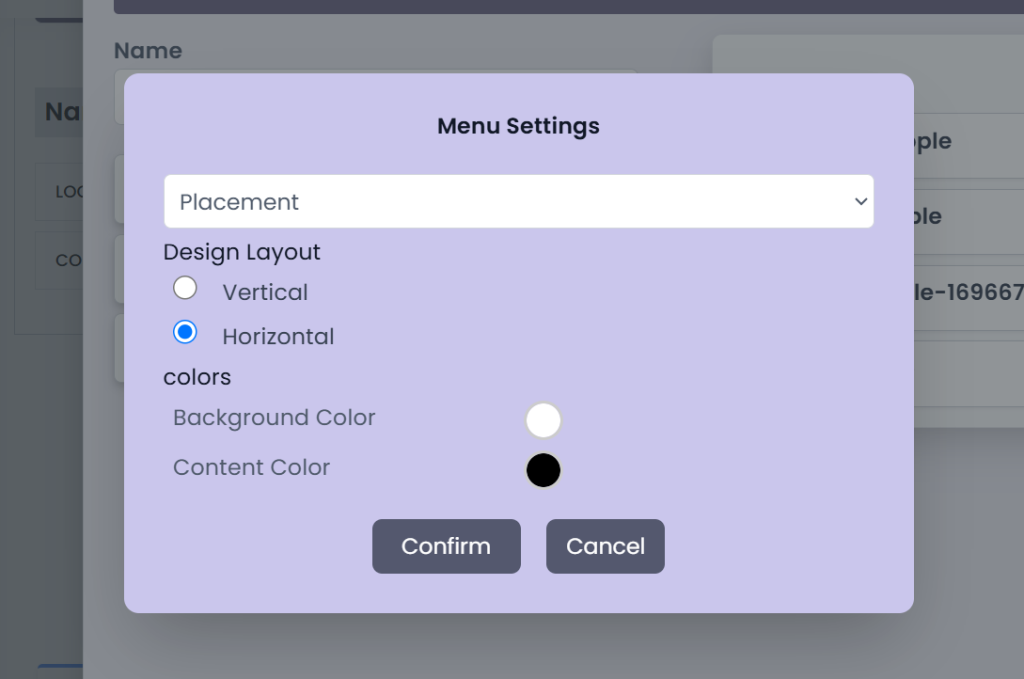
- Use the settings icon next to the name field to configure advanced options if needed.
- Adding Items to the Menu:
- Select an item type:
- Collections: Choose from your existing product collections.
- Pages: Add links to important store pages, such as “About Us” or “Contact.”
- Blogs: Integrate your blog articles into the menu.
- Click the dropdown arrow next to the desired category (e.g., Collections, Pages, Blogs) to view available items.
- Drag and drop items into the menu structure or click Add New Item to manually add links or titles.
- Select an item type:
- Organizing Menu Items:
- Rearrange items by dragging them within the menu.
- Create submenus by nesting items under a parent item.
- Saving the Menu:
- Once you’ve added and arranged all items, save the menu to make it live on your store.
Additional Options
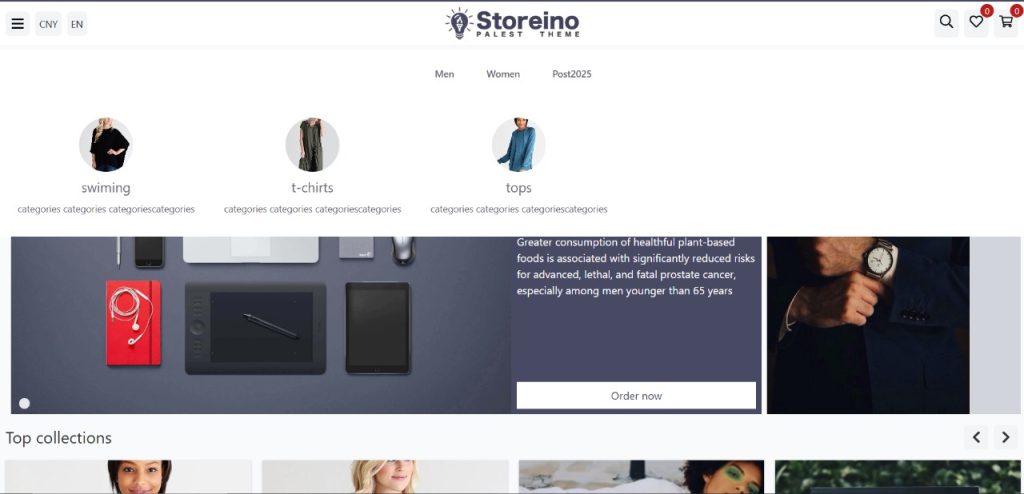
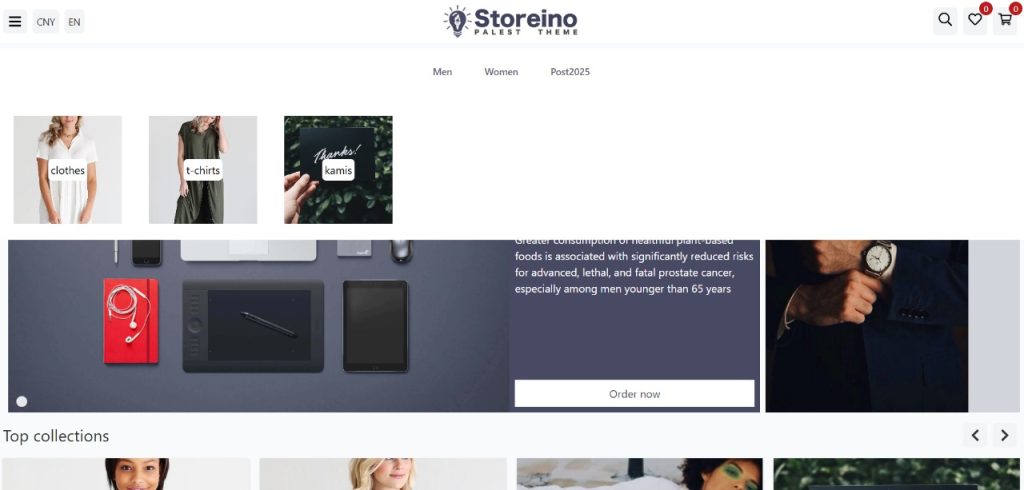
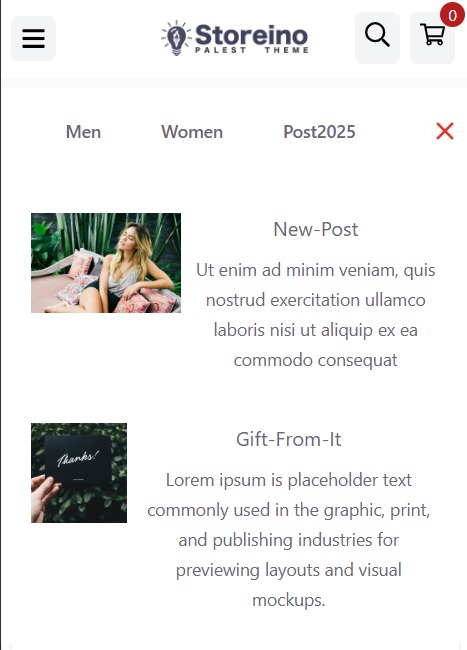
- Preview Changes: Use the built-in preview to visualize how the menu will appear to visitors.
- Edit or Delete: Modify menu items or delete menus at any time to keep navigation updated.
Notes
- Ensure menu names are descriptive for easier management.
- Limit the number of top-level items to keep navigation clean and user-friendly.
- Regularly review your menu to ensure it reflects current store offerings.