Languages and Currencies
Follow these steps to add new languages and currencies to your Storeino store.
Step 1: Login and Navigate to Settings
- Log in to your store account.
- Go to the Settings section, then click on “Languages and Currencies” to begin the process of adding new languages and currencies
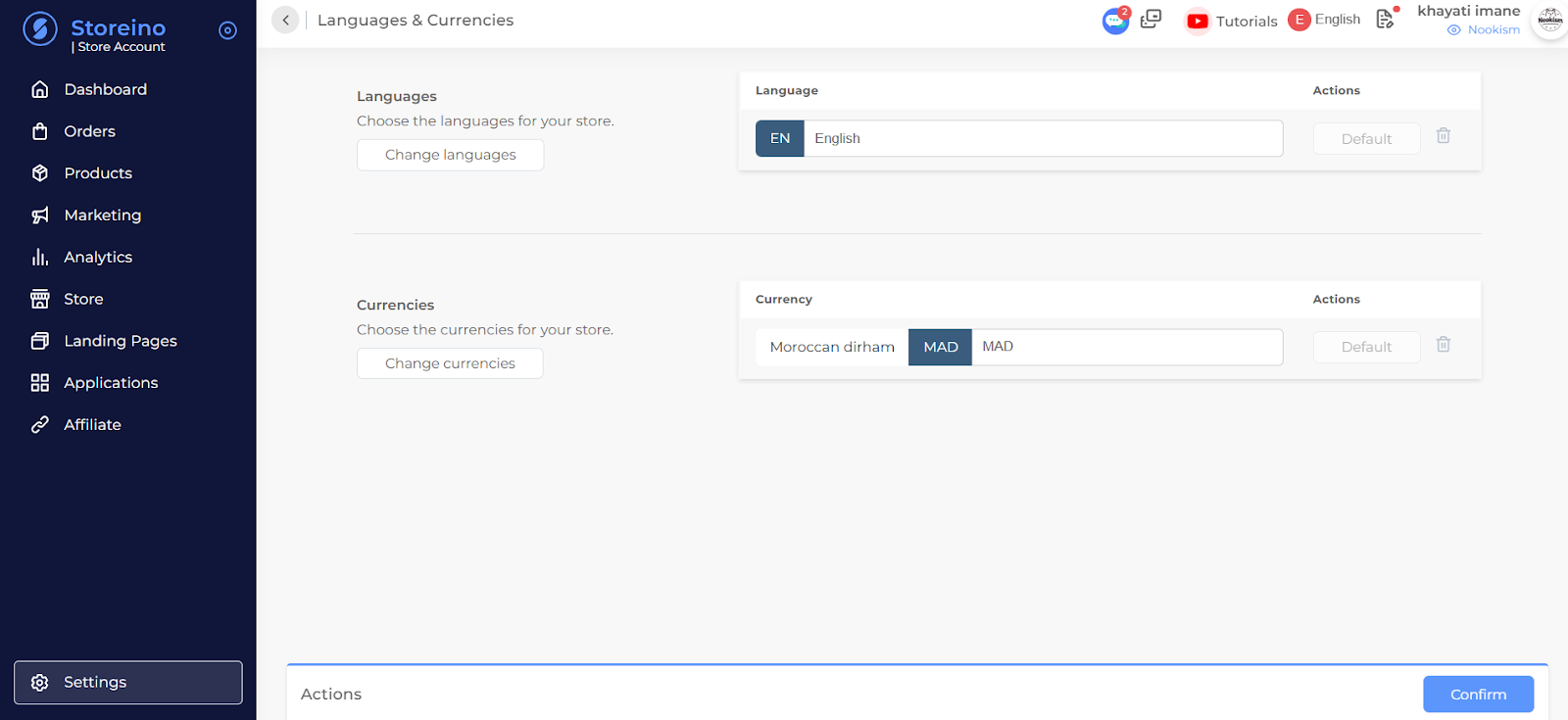
Step 2: Understand Account Limitations
- The number of languages and currencies you can add depends on the type of account:
- Basic accounts can add 1 language and 1 currency.
- Business or Professional accounts can add 3 or more languages and currencies.
Step 3: Add a New Language
- To add a new language, click on “Add Language”.
- Select the desired language from the available options and click “Confirm” to save your choice.
- You can set the newly added language as the default language by clicking on the “Default” button.
Step 4: Add a New Currency
- To add a new currency, click on “Add Currency”.
- Select the desired currency from the available options and click “Confirm” to save your choice.
- You can set the newly added currency as the default currency by clicking on the “Default” button and confirming the change.