How to Pay Your Subscription
Follow these steps to successfully pay your subscription on Storeino:
How to pay the subscription to Storeino platform?
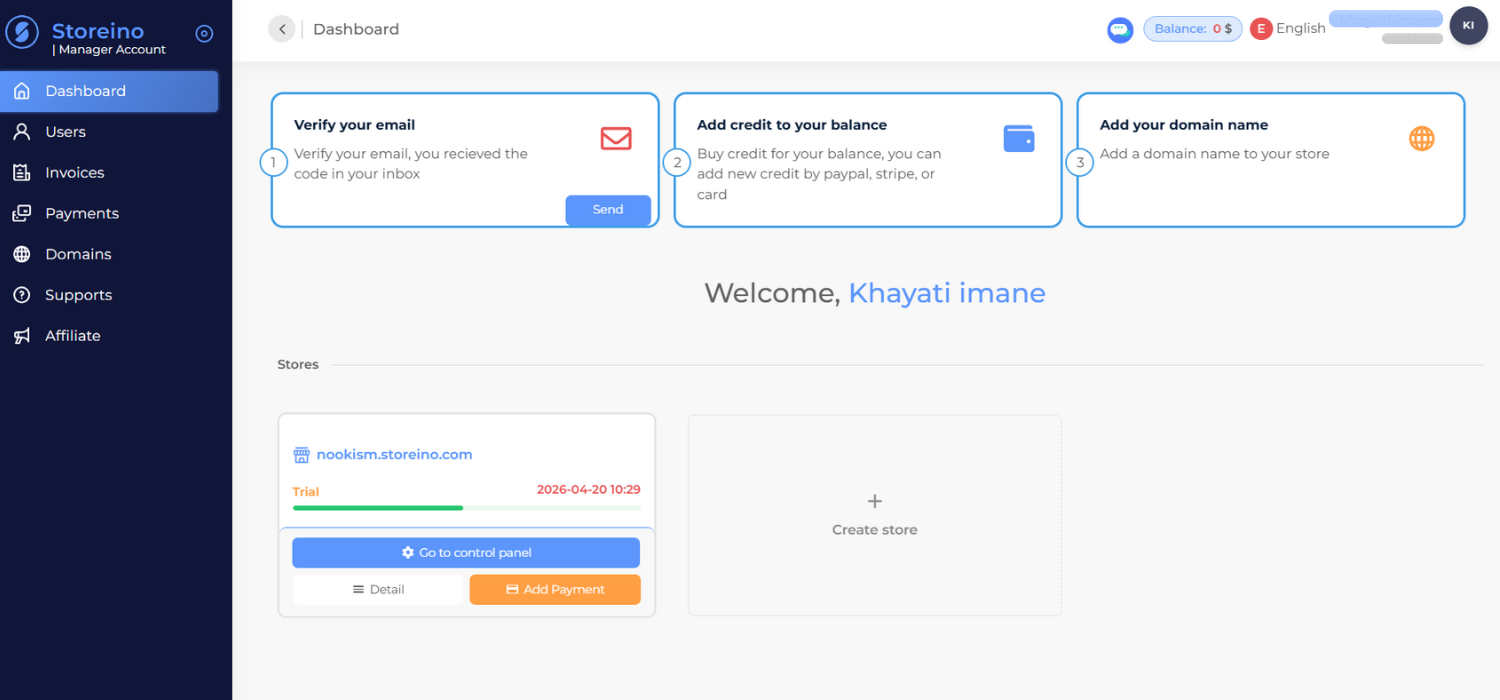
1. Access the Manager Dashboard
- Log in to your Storeino account.
- Navigate to the Manager Account section.
- On the dashboard, you will see a list of stores you’ve created. Expired stores will be marked as such.
- Click the Add Payment button next to the store you want to renew.
2. Choose a Pack
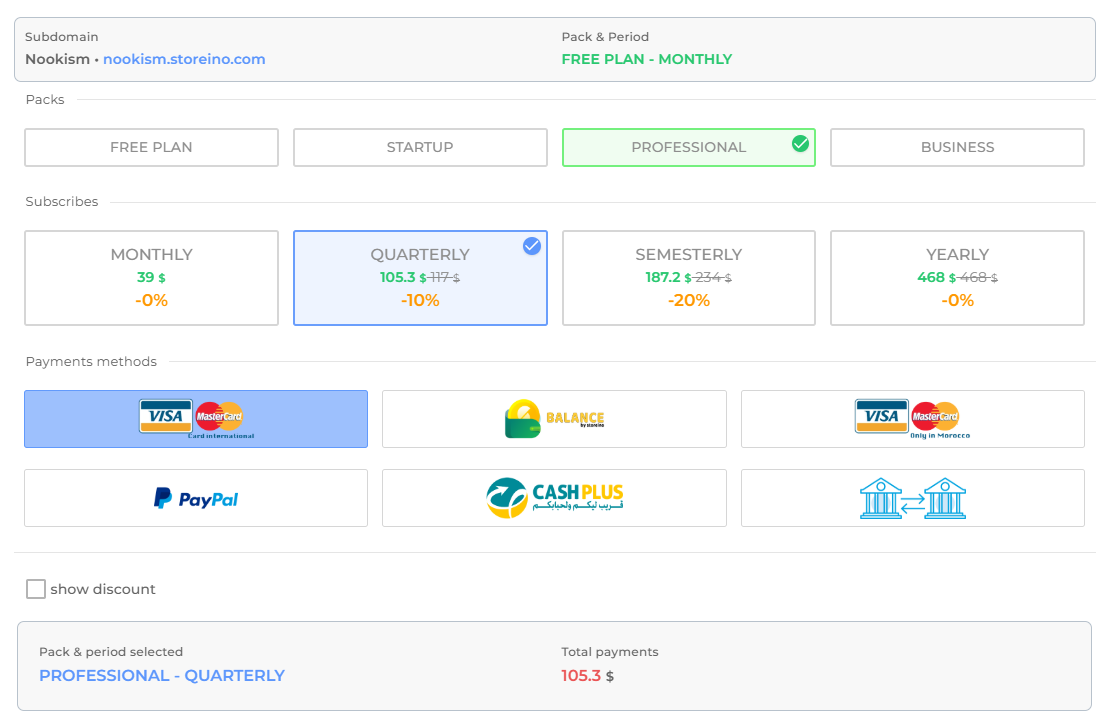
- Select a subscription pack that suits your business needs:
- Startup Pack
- Professional Pack (includes more features than Startup).
- Business Pack (the most feature-rich option).
3. Choose a Subscription Type
- Choose the billing period for your subscription:
- Monthly
- Quarterly (10% discount).
- Semesterly
- Yearly
4. Select a Payment Method
- Credit Card:
- International Card: For non-Morocco residents.
- Moroccan Card: For residents of Morocco with a locally issued card.
- PayPal:
- Log in to your PayPal account and complete the payment.
- CashPlus (Moroccan Residents):
- Generate a code by selecting this option.
- Write the code down, visit the nearest CashPlus agency, and provide the code to make the payment.
- Bank Transfer:
- Copy Storeino’s bank account details.
- Transfer the payment at your bank.
- Take a picture of the transfer receipt and send it via email or WhatsApp using the provided contact information.
5. Apply Discount Codes (if available)
- If you have a discount code (e.g., New Year’s offers), enter it in the Discount field and click Verify.
- The discounted amount will be automatically deducted.
6. Confirm and Pay
- Once all the information is filled in, click the Pay button to complete your subscription payment.
Switching and Upgrading Plans
Upgrading Your Plan
- From the Manager Dashboard, scroll down and click on Add Payment.
- A list of plans will be displayed:
- Free Plan
- Startup Plan
- Professional Plan
- Business Plan
- Select the desired plan and click Pay to process your subscription payment.
- Changes will take effect immediately, but no payment is required until your free trial period ends.
Downgrade Policy
- Downgrades are not allowed. Once you’ve upgraded, your plan cannot be changed to a lower tier.