Adding a Discount Code
Discount codes are an excellent way to attract customers and boost sales by offering special deals on products or orders. Here’s how you can create and activate discount codes in your Storeino store:
How to create a discount code on your online store – Storeino
Step 1: Access the Discount Section
- Log in to your Storeino account.
- Navigate to the Marketing section.
- Click on Discount, then select New Discount.
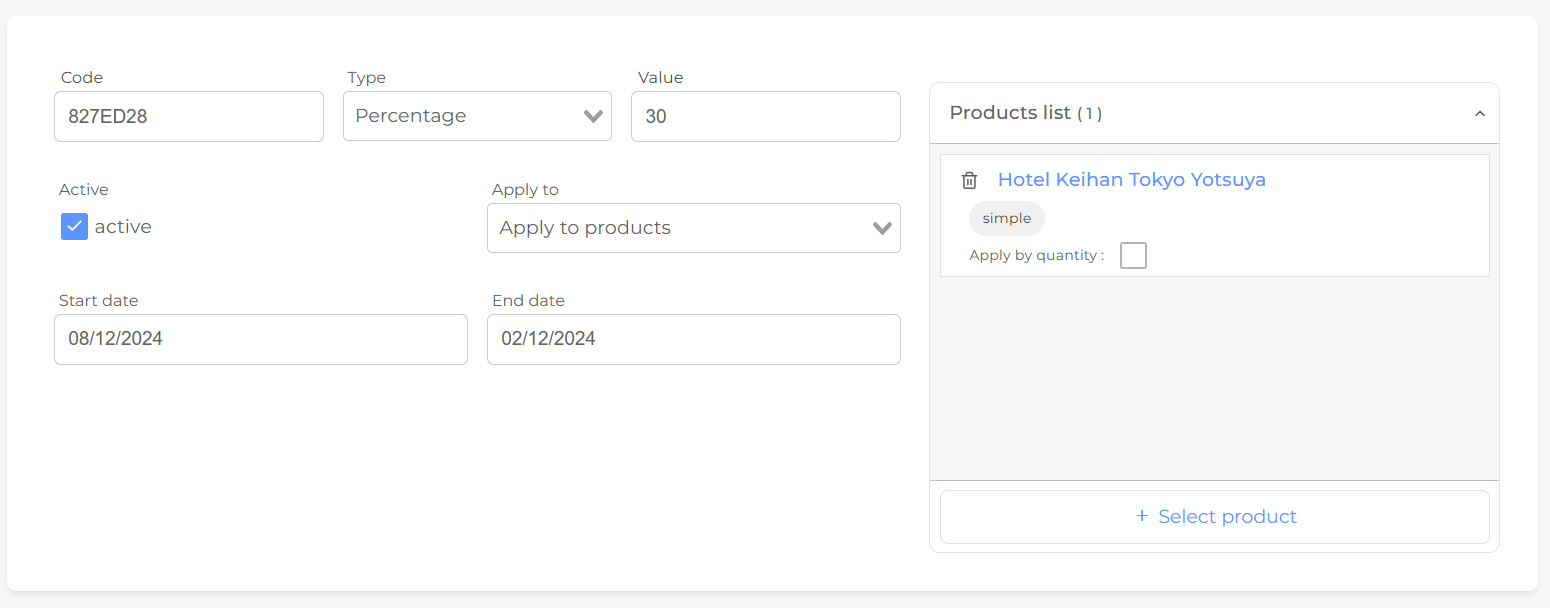
Step 2: Configure the Discount Code
- Enter the Code Name:
- Type a unique name for your discount code (e.g., “SUMMER10”).
- Select the Discount Type:
- Fixed Amount: Deducts a fixed amount from an order or product.
- Percentage: Deducts a percentage from the total.
- Free Shipping: Offers free shipping for qualifying orders.
- Set the Discount Value:
- For example, if you select “Percentage,” you can set it to 10%.
- Activate/Deactivate the Discount:
- Leave the Active box checked to enable the discount. Uncheck it if you wish to deactivate the code temporarily.
- Apply the Discount:
- Choose whether the discount applies to specific Products or Orders.
- If applying to products, select the product(s) to which the discount will be applied.
Step 3: Set Validity Dates
- Choose a Start Date and an End Date for the discount.
- Example: A 4-month promotion starting today and ending in 4 months.
- Click Confirm to finalize and add the discount code to your list.
Step 4: Enable the Discount Feature in Checkout
- Navigate to Settings > Checkout > Cart.
- Find the Coupon option.
- Enable the Coupon feature by toggling it on.
- Click Confirm to save changes.
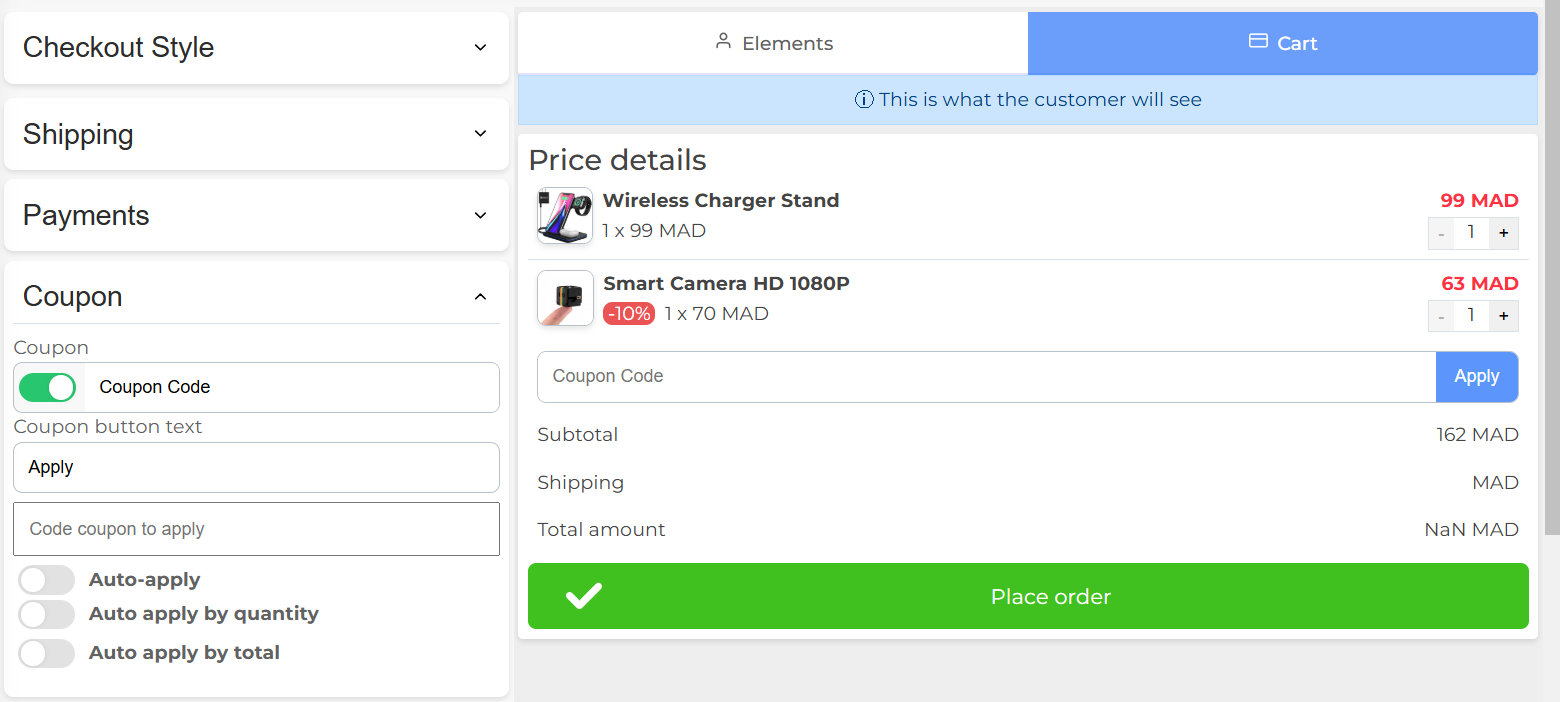
Step 5: Test Your Discount Code
- Go to your store and select the product where the discount is applied.
- Add the product to your cart.
- In the cart page, click on the Coupon/Discount Code field.
- Enter your discount code and click Apply.
- Example: Enter “SUMMER10” and verify that the discount is reflected (e.g., a 10% reduction).
- Proceed with the checkout process to ensure the discount is applied to the total order.
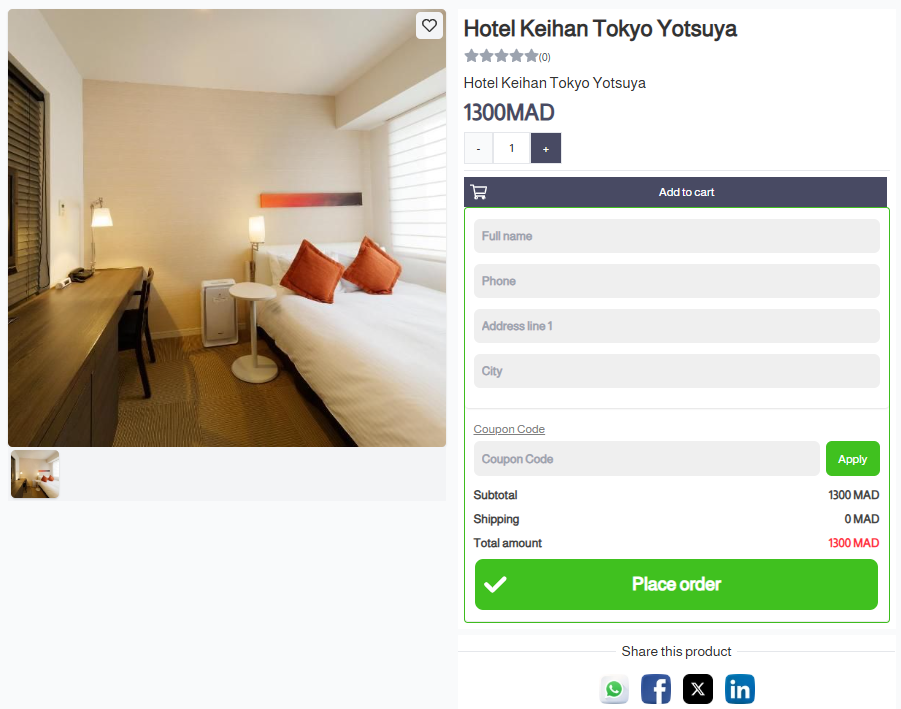
Example Scenario
- Code Name: “SUMMER10”
- Type: Percentage
- Value: 10%
- Application: Specific Product
- Start Date: Today
- End Date: 4 months later
- Result: A 10% discount is displayed on the product page when the code is applied during checkout.
Tips
- Ensure your discount codes are easy for customers to remember.
- Use time-limited offers to create urgency.
- Combine discounts with marketing campaigns to maximize impact.