Setting Up SEO for Your Store
Search Engine Optimization (SEO) is a vital feature that helps improve your store’s visibility and classification in search engines, making it easier for customers to find your store. Follow these steps to optimize your store’s SEO settings:
Steps to Configure SEO Settings
- Access SEO Settings
- Navigate to the Settings section in your Storeino dashboard.
- Click on SEO (Search Engine Optimization).
- Set Your Store Name
- Enter the name of your store. This is crucial as it will appear in search engine results.
- Your store name is displayed on every page of your website.
- By default, your store name is set to “Online Store”, but you can customize it to reflect your brand identity. you can change it by going to settings > SEO > change store name.
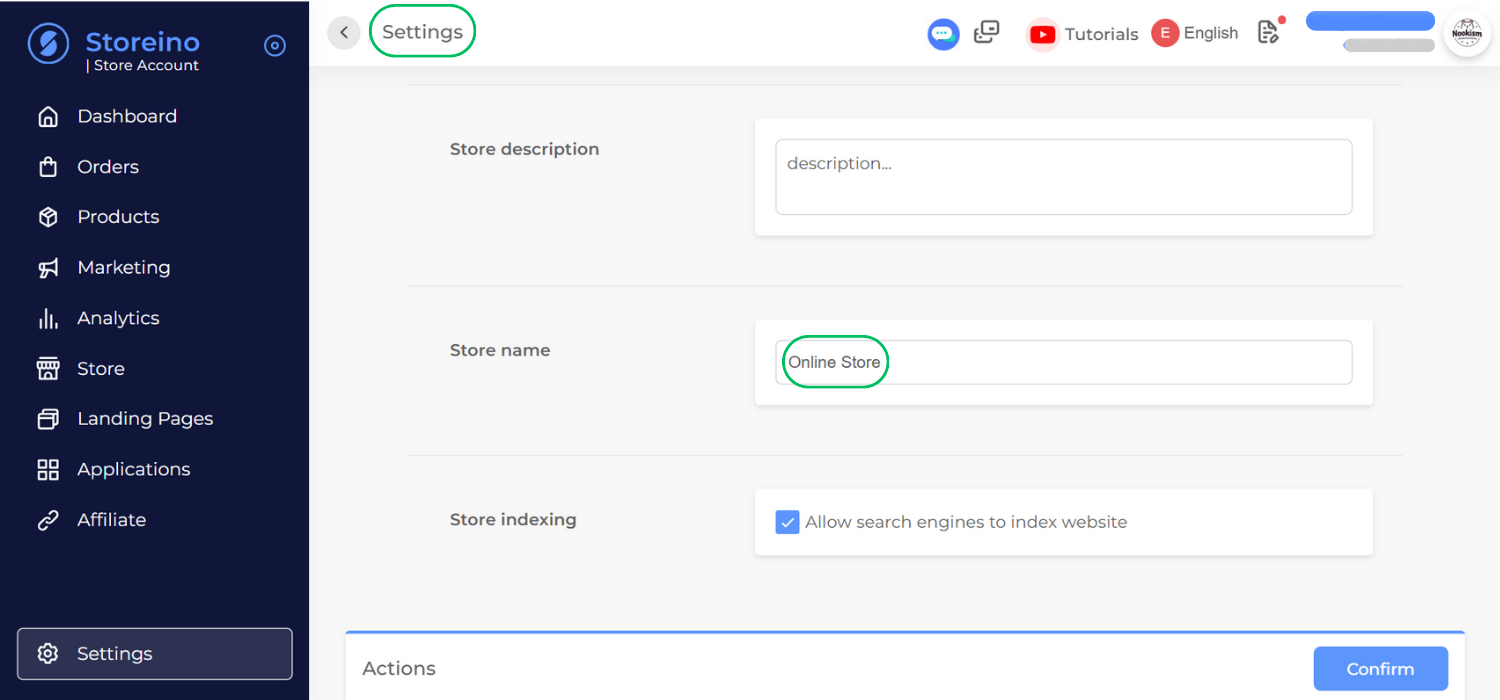
- Add a Store Description
- Write a short description of your store that highlights its purpose and offerings.
- Tip: Use relevant keywords related to your e-commerce field to improve search engine ranking.
- Upload a Store Favicon
- The favicon is the small icon that appears on the browser tab when your store is open.
- Steps:
- Click on the Favicon image placeholder.
- Select or upload your desired favicon image.
- Click Insert to confirm.
- Set the Store OG (Open Graph) Image
- The OG image is displayed when your store’s link is shared on social media platforms.
- Upload an appropriate image to represent your store.
- Activate the Store Indexing
- Enable the Store Indexing option to ensure all your SEO configurations are activated.
- Save Your Settings
- Click Confirm to finalize the setup.