Shipping
How to Activate Shipping and Free Shipping
In this guide, you’ll learn how to enable shipping, set shipping fees, and configure free shipping options in your Storeino store.
Step 1: Log In and Navigate to Settings
- Log in to your Storeino account.
- Go to the Settings section on your dashboard.
- Click on Checkout and select Start under the shipping options.
Step 2: Enable and Set Shipping Fees
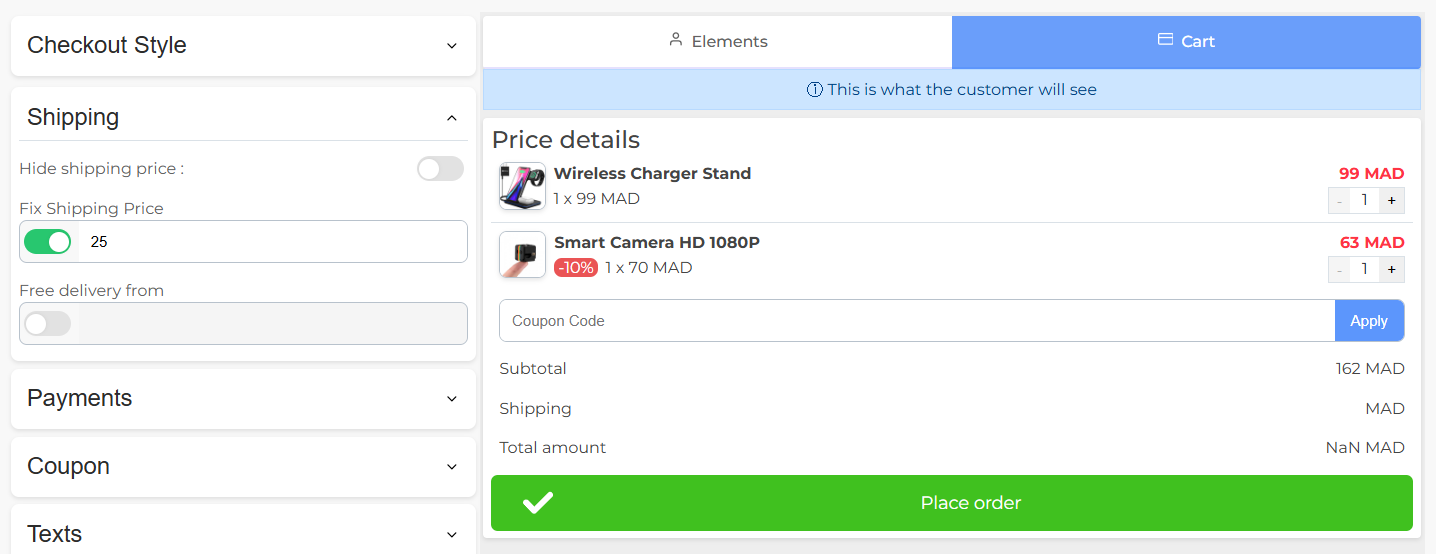
- Activate Shipping:
- Toggle the shipping option to “On.”
- Set a Shipping Price:
- Input your desired shipping fee (e.g., 25).
- Confirm Changes:
- Click Confirm to save the settings.
- Verify on Product Pages:
- Go to your store, select a product, and check that the shipping price is displayed (e.g., 20).
Step 3: Enable Free Shipping for All Products
- Go back to the Shipping Settings.
- Change the shipping price to 0.
- Click Confirm to save.
- Refresh your product page:
- The shipping price will now display as Free for all products.
Step 4: Set a Free Delivery Threshold
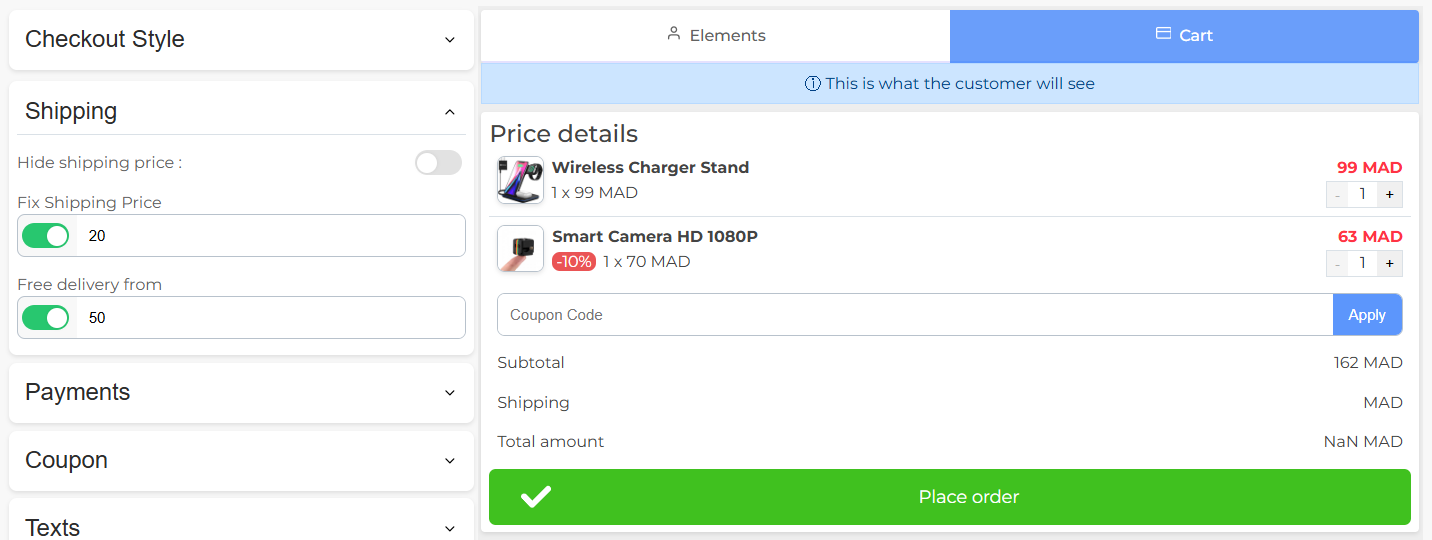
- Re-enable Fixed Shipping Price:
- Activate the fixed shipping option with a set price (e.g., 20).
- Enable the “Free Delivery From” Option:
- Set a minimum total order amount for free shipping (e.g., 50).
- Confirm and Test:
- Click Confirm.
- Test scenarios:
- If the order total is below the threshold (e.g., 15), shipping fees apply.
- If the order total exceeds the threshold (e.g., 53), shipping is free.
Step 5: Notify Customers with a Message Bar
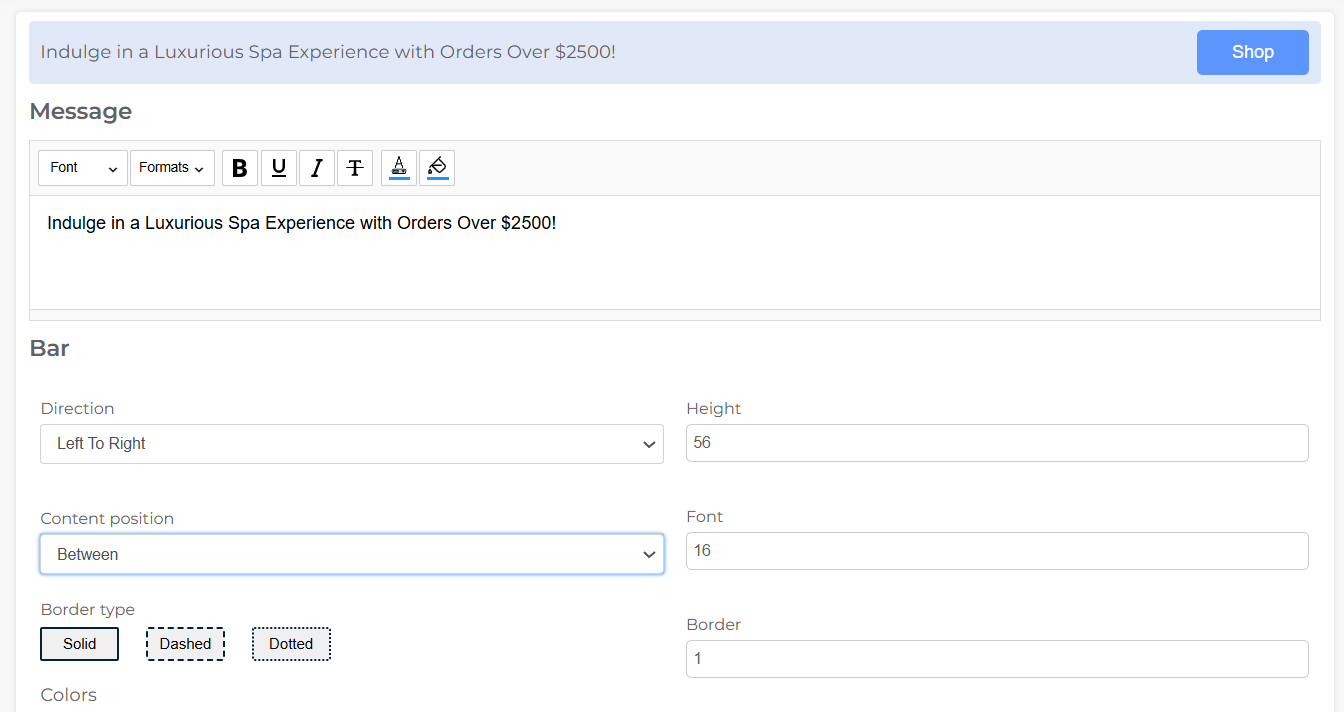
- Go to the Applications section in Storeino.
- Install the Message Bar Application.
- Create a Notification:
- Add a message like: “Free shipping on orders over $50!”.
- Display on Your Store:
- The message will appear at the top of your store page.