Adding Suppliers to Your Store
Adding suppliers to your Storeino store is a straightforward process that helps you manage your product sourcing efficiently. Here’s a step-by-step guide:
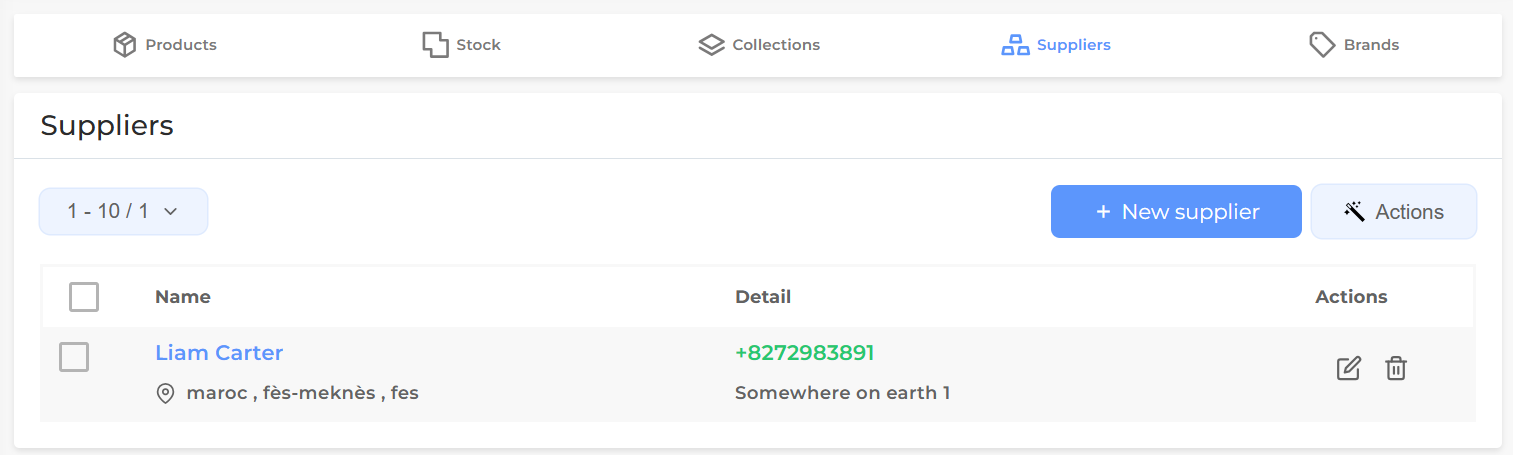
Step 1: Navigate to the Suppliers Section
- Log in to your Storeino account.
- Go to the Products section.
- Click on Suppliers in the menu.
Step 2: Add a New Supplier
- Click on the New Supplier button.
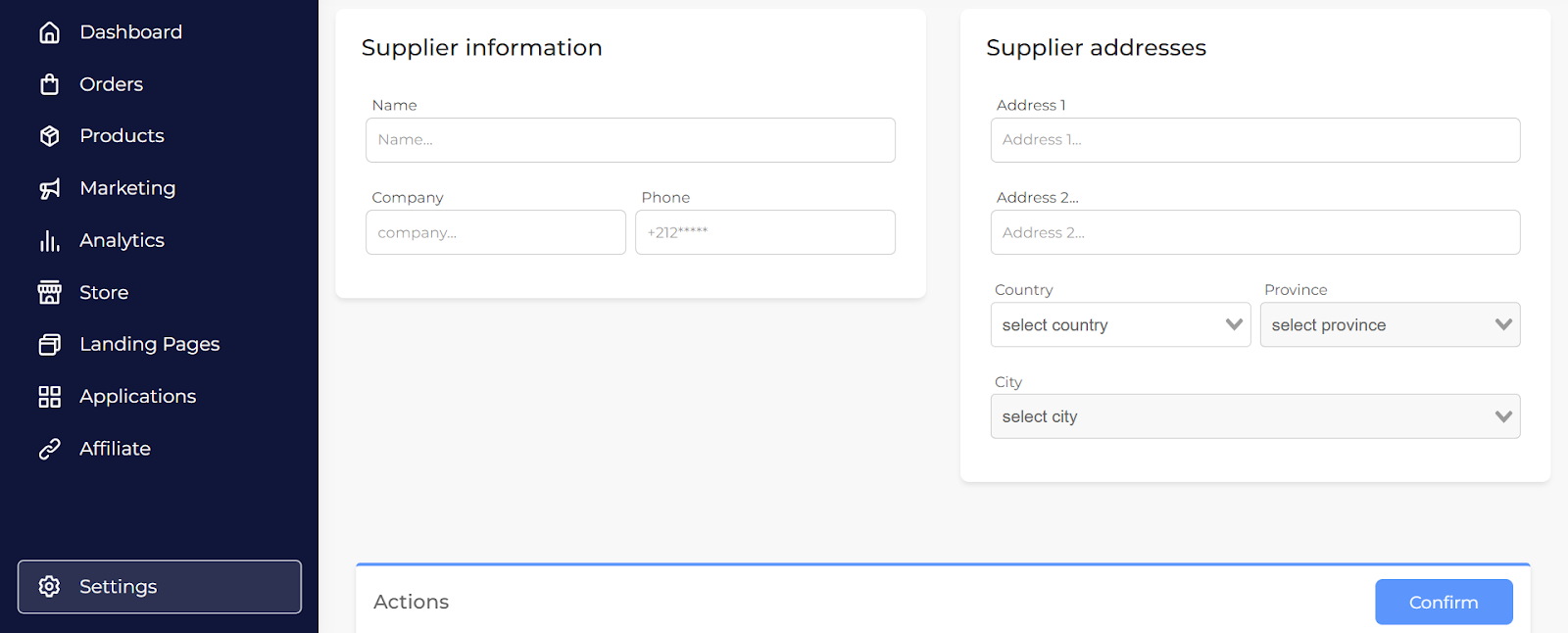
- Fill in the Supplier Information:
- Enter the Name of the Company (e.g., supplier’s name).
- Add the Contact Number for the supplier.
Step 3: Enter the Supplier Address
- Fill in the address fields:
- Address Line 1: Enter the primary address details.
- Address Line 2: (Optional) Additional address details.
- Set the Location:
- Select the Country.
- Choose the Province or State.
- Pick the City.
Step 4: Confirm and Save
- Once all fields are completed, click Confirm to save the supplier’s information.
Step 5: View Your Supplier List
- After adding the supplier, it will appear in the Suppliers section with all the details you provided.