Managing Orders in Storeino
In this guide, we will show you how to manage all aspects of your orders in Storeino, including viewing, editing, and updating order information. the orders section contains the following sub-sections:
- Orders: This is the primary section where the list of orders is displayed.
- Customers: This section provides an overview of customer information and behavior.
- Payments: for managing payment transactions and processing.
- Invoices: for generating and managing invoices.
Accessing Orders
- Login to Your Account: Once logged in, navigate to the Orders section.
- Order List: Here, you’ll see a list of all orders placed on your store. The following details are displayed for each order:
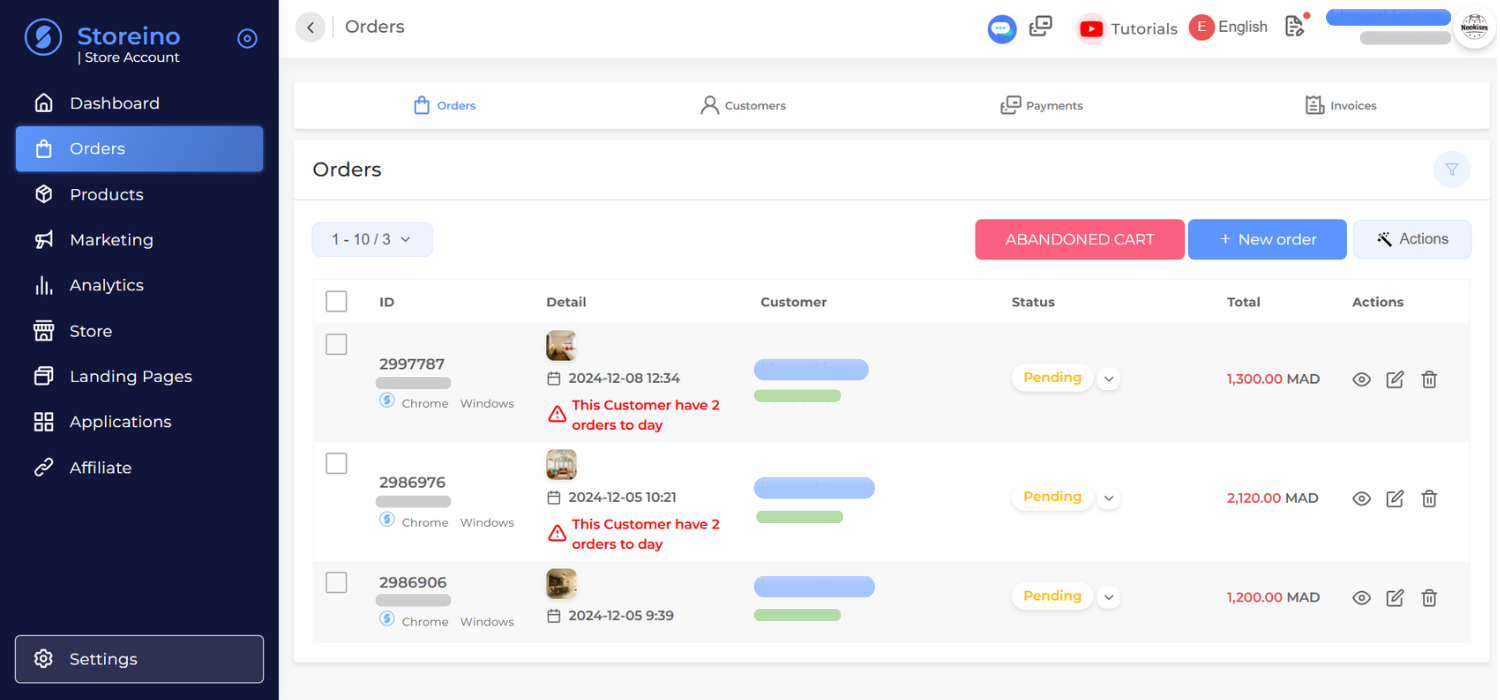
- Order ID: Unique identifier for each order.
- Detail: A brief description or image of the ordered products.
- Customer: Customer information, including name and contact details.
- Status: Current status of the order (e.g., Pending, Shipped, Delivered).
- Total: Total amount of the order.
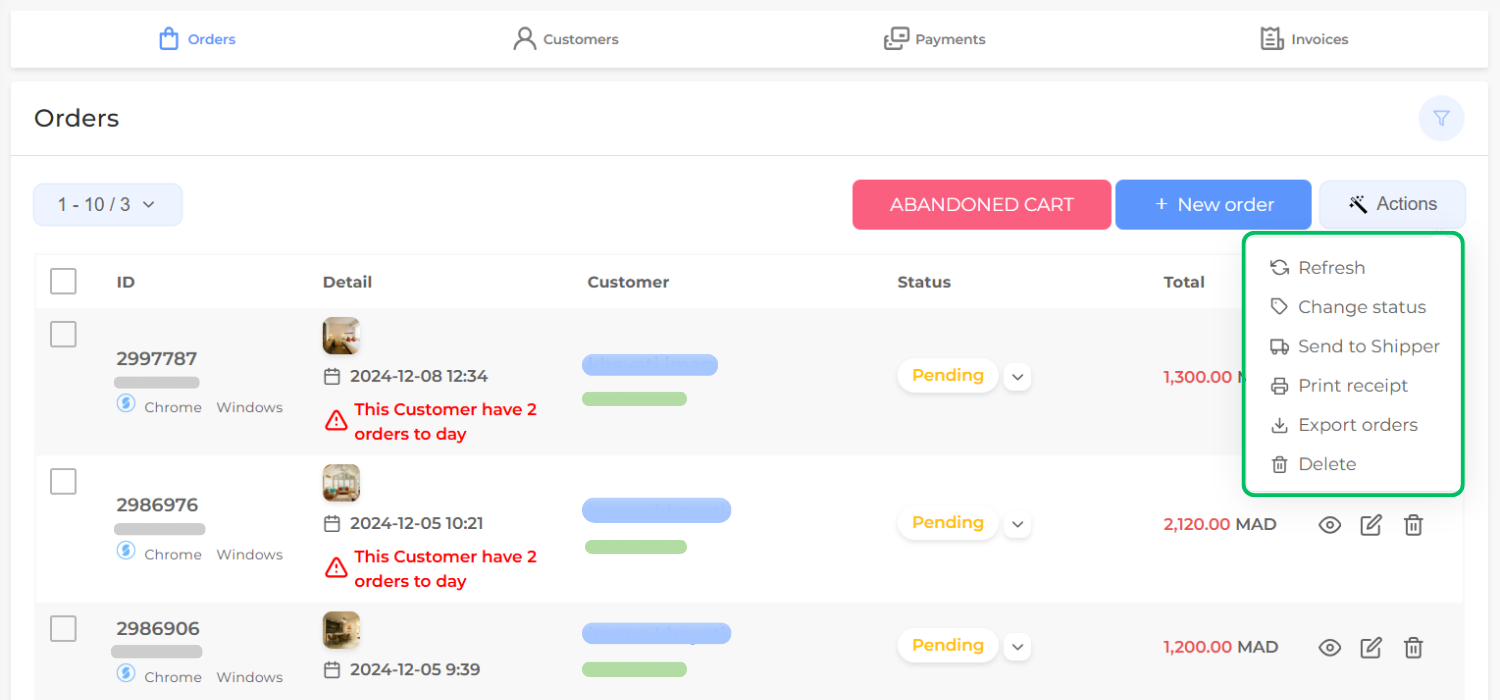
- Actions: A dropdown menu with various actions, such as:
- Refresh: reloads the current page.
- Change Status: Allows the user to modify the status of the current order or selected orders.
- Send to Shipper: Sends the order information to a shipping partner.
- Print Receipt: Prints a physical receipt or generates a printable document.
- Export Orders: Exports order data to a file format like CSV or PDF.
- Delete: Deletes the current order or selected orders.
Additional Features:
- Search and Filter: The search bar allows users to filter orders based on specific criteria.
- Pagination: The “1-10/3” indicates that there are multiple pages of orders, with 10 orders displayed per page.
- Customer Insights: The “This Customer has 2 orders to day” message provides additional context about the customer’s activity, mainly shown to prevent order spamming.
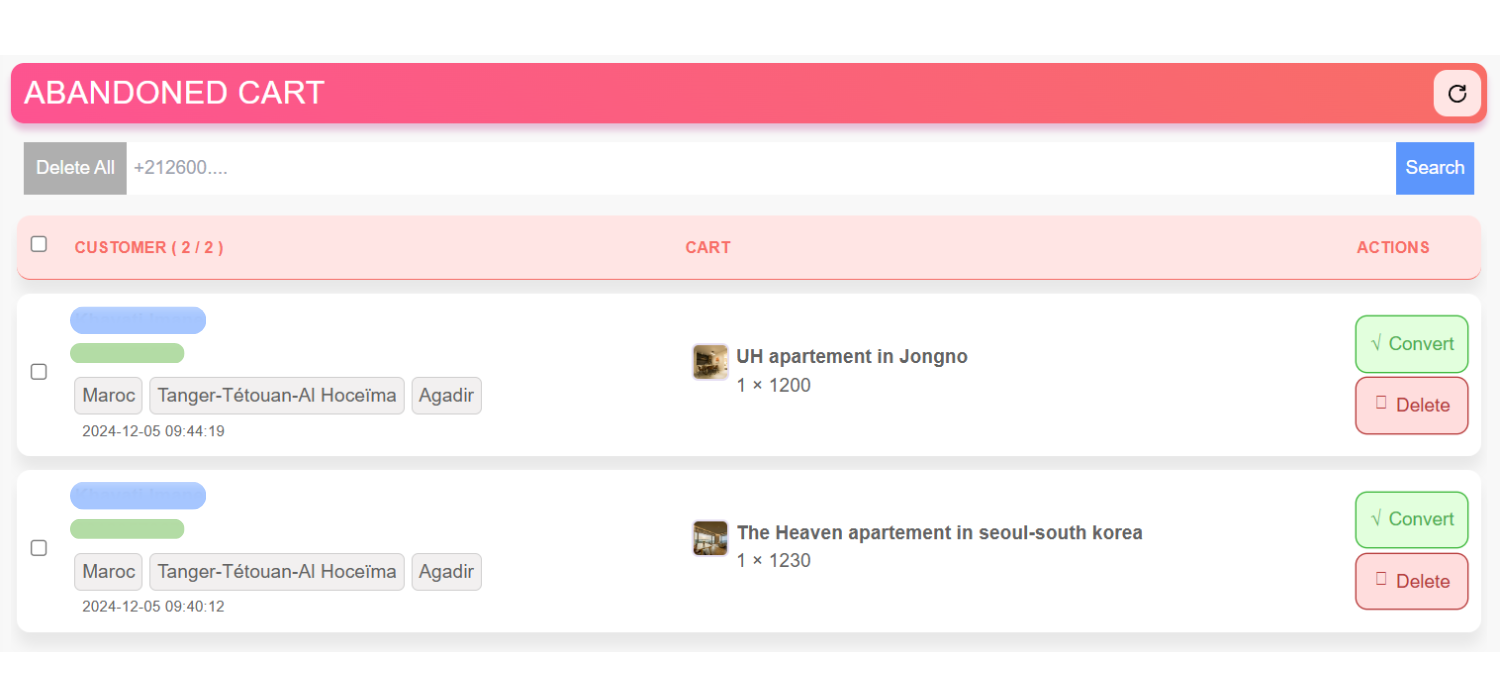
The abandoned cart section:
Top Bar:
- Abandoned Cart: Title indicating the section.
- Delete All: Button to remove all items from the cart.
- Search: Search bar to filter abandoned carts.
Cart Items:
- Customer Details: Name, Phone Number, Country, Region, City.
- Product Details: Image, Name, Quantity, and Price.
- Date and Time: Timestamp of when the item was added to the cart.
- Actions:
- Convert: Button to convert the abandoned cart into an active order.
- Delete: Button to remove the specific item from the cart.
Managing Order Status
- Changing Order Status:
- Each order has a status, such as “Pending” by default.
- To change the status, click on the Status button next to the order.
- A list of available statuses will appear (e.g., Confirmed, Refused). Select the desired status and click Accept.
- The order status will update accordingly.
Order Status
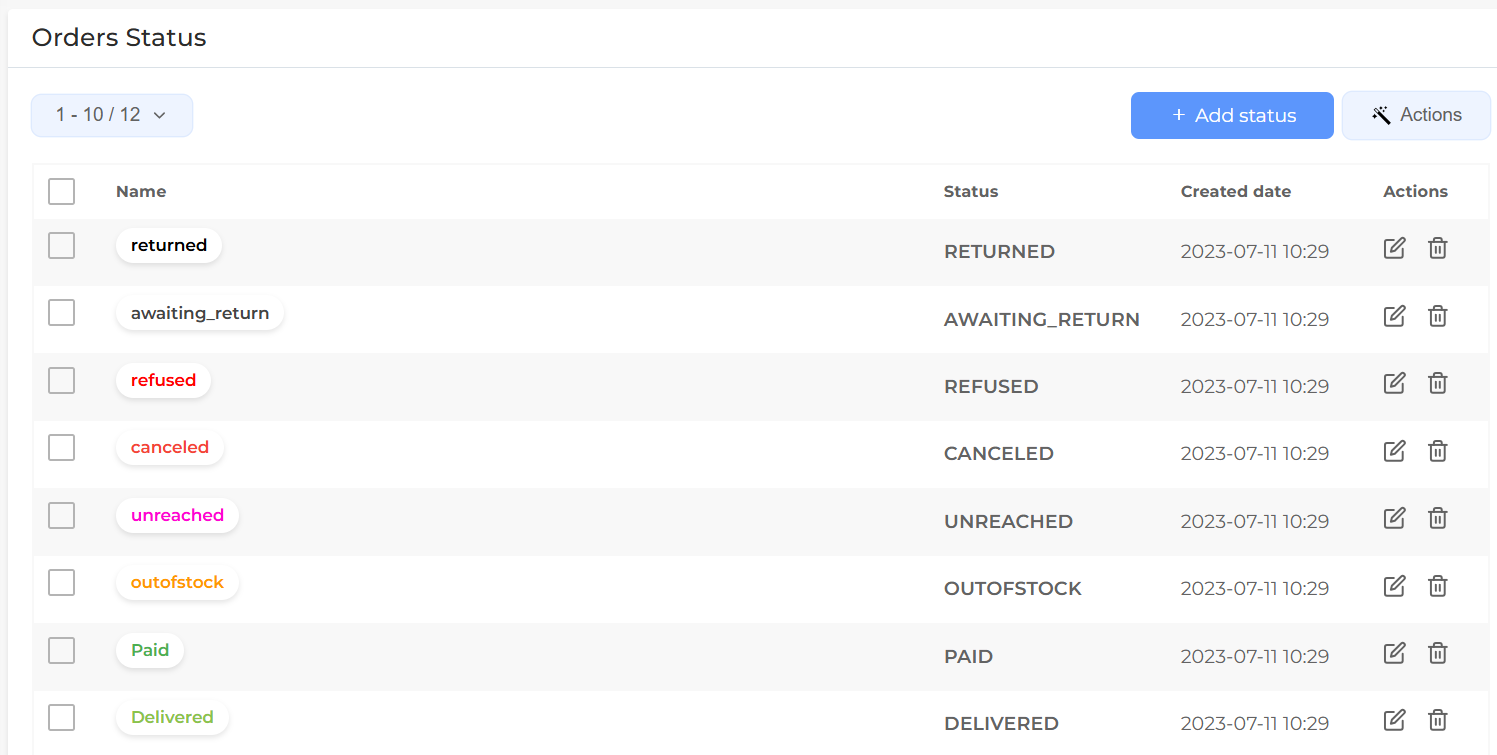
if you go to store dashboard > settings > order status, you can manage order status, you can set the orders you want depending your needs, to make managing order easier to be maintained.
- + Add Status: adds a new order status to the system.
- Actions: Opens a dropdown menu with refresh action.
- Checkboxes: Allows users to select multiple orders for bulk actions.
- Name: The name or identifier of the order.
- Status: The ID of each order status (e.g., Returned, Awaiting Return, Refused, Canceled, Unreached, Out of Stock, Paid, Delivered).
- Created Date: The date when the status was created.
- Actions: Individual actions for each order, such as editing or deleting.
customer management section:
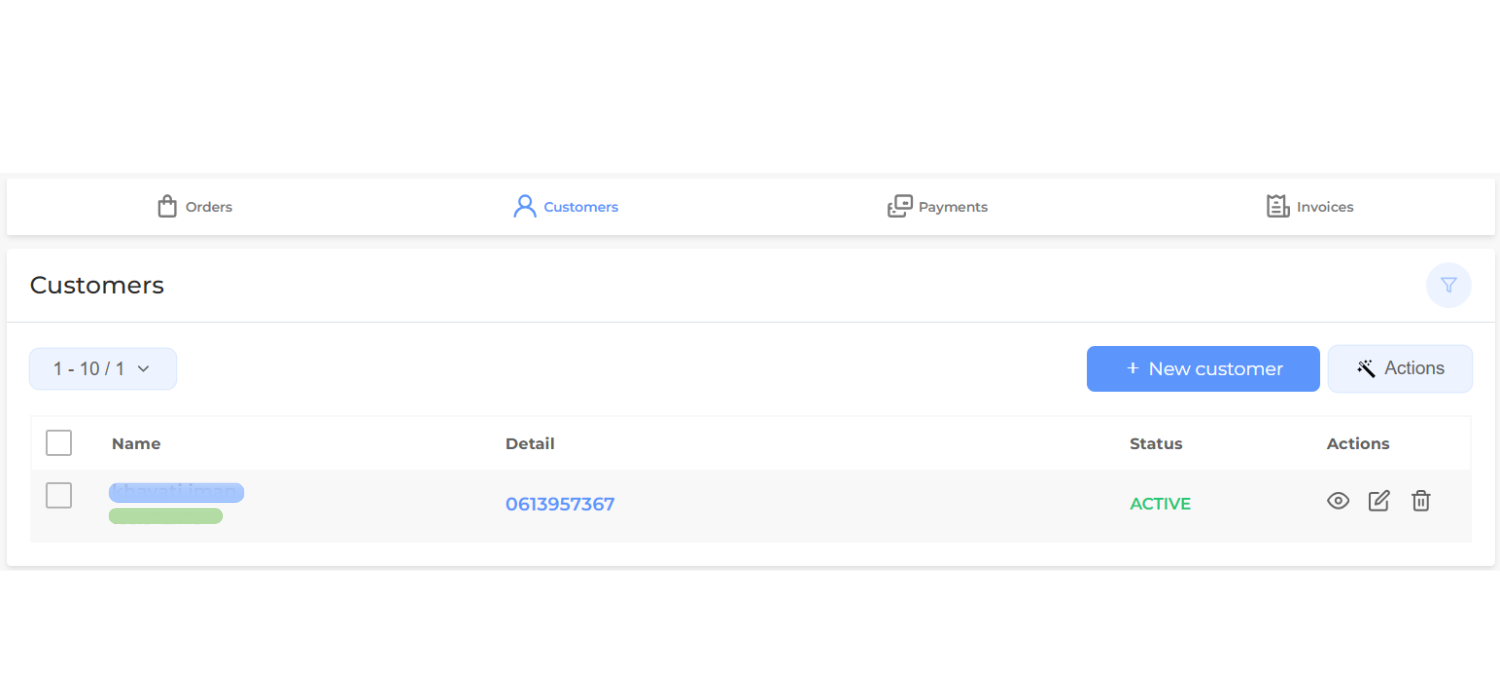
- “New Customer” Button: Allows the creation of a new customer record.
- “Actions” Button: opens a dropdown menu with refresh and export customers options.
- Checkbox: Allows for selecting multiple customers for bulk actions.
- Name: Customer’s name.
- Detail: Additional customer information, such as phone number or email.
- Status: Current status of the customer (e.g., Active, Unactive, Blocked).
- Actions: view, edit or delete a customer.
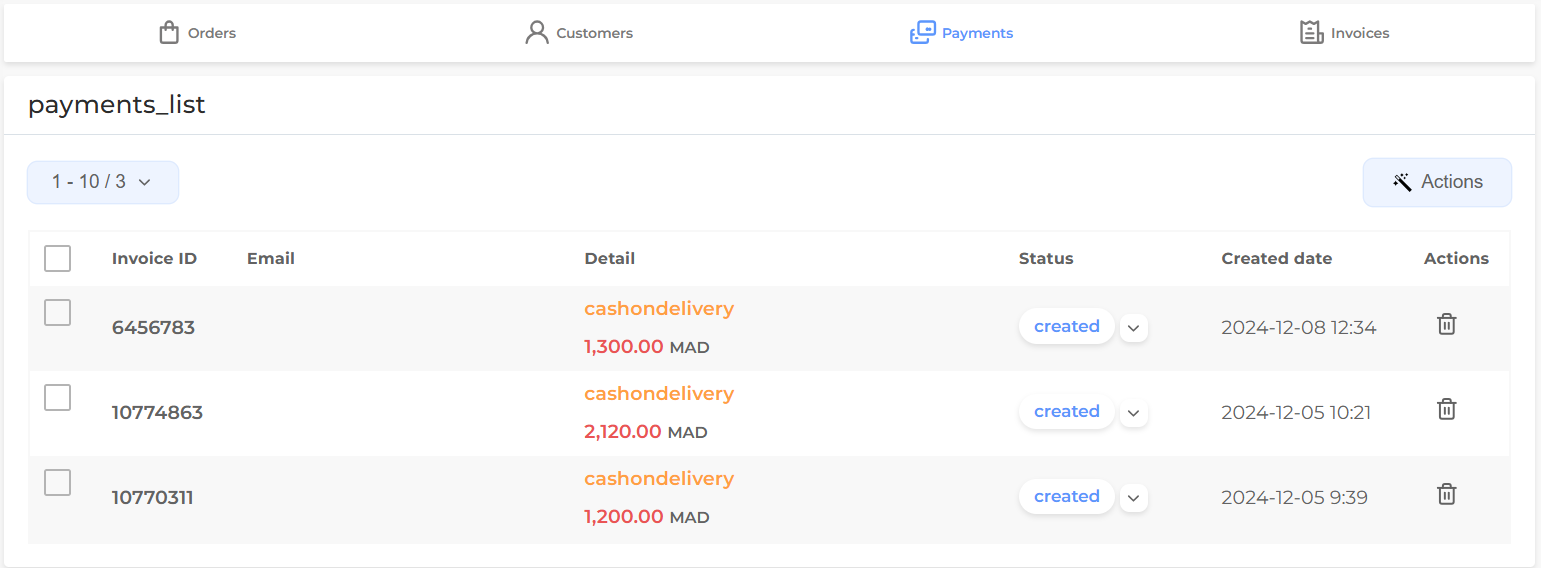
Payments section: store dashboard > orders > payments
- “Actions” Button: a dropdown menu with refresh action.
- Checkbox: Allows users to select multiple payments for bulk actions.
- Invoice ID: Unique identifier for each payment.
- Email: Customer’s email address associated with the payment.
- Detail: Payment details, such as payment method (cashondelivery) and amount.
- Status: Current status of the payment (e.g., CREATED, APPROVED, FAILED, COMPLETED, INPROGRESS, REFUNDED).
- Created Date: Date and time when the payment was created.
- Actions: Individual actions for each payment, such as deleting
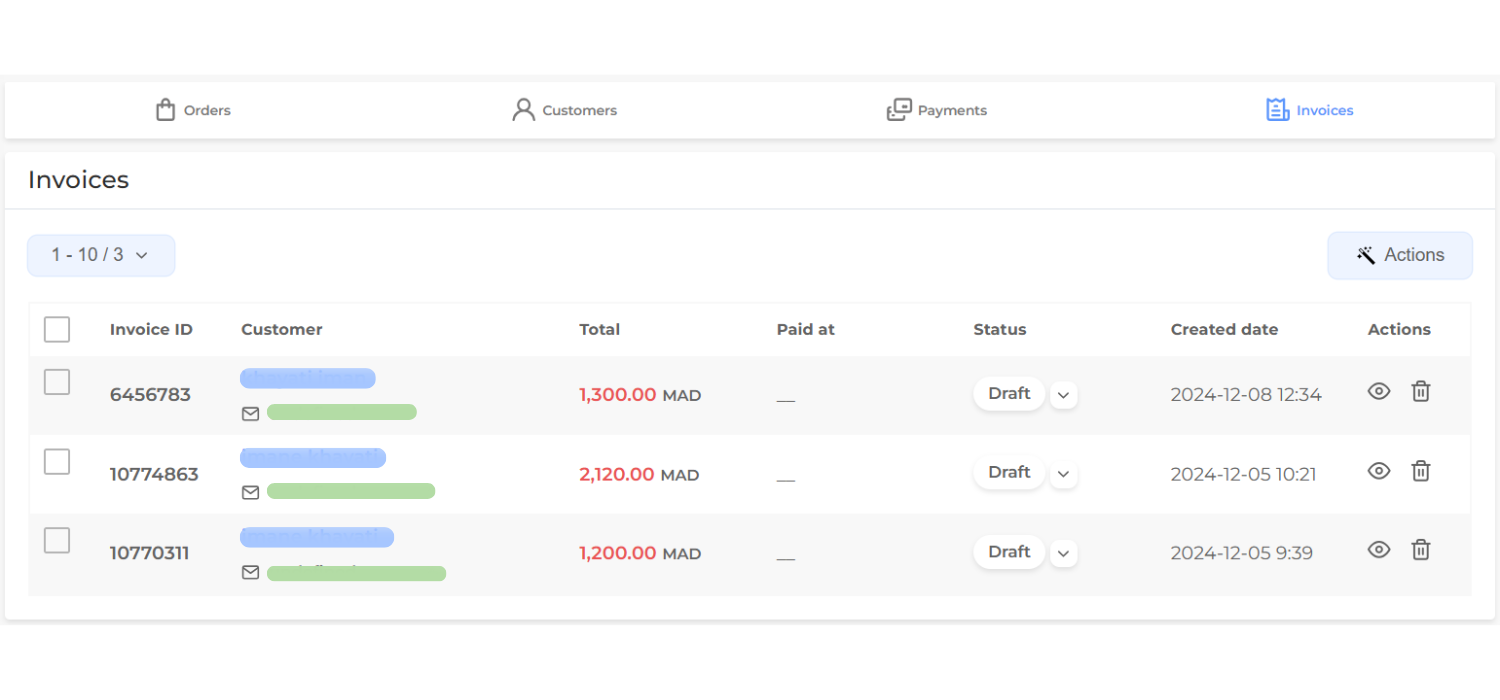
Invoices Section: store dashboard > orders > payments
- Checkbox: Allows users to select multiple invoices for bulk actions.
- Invoice ID: Unique identifier for each invoice.
- Customer: Customer name and email associated with the invoice.
- Total: Total amount of the invoice.
- Paid at: Date and time when the invoice was paid (currently empty for all invoices).
- Status: Current status of the invoice (e.g.,DRAFT, SENT, PAID, UNPAID, CANCELLED, REFUNDED, PAYMENT PENDING). You can edit the status of the invoice.
- Created Date: Date and time when the invoice was created.
- Actions: Individual actions for each invoice, mainly for refresh page.
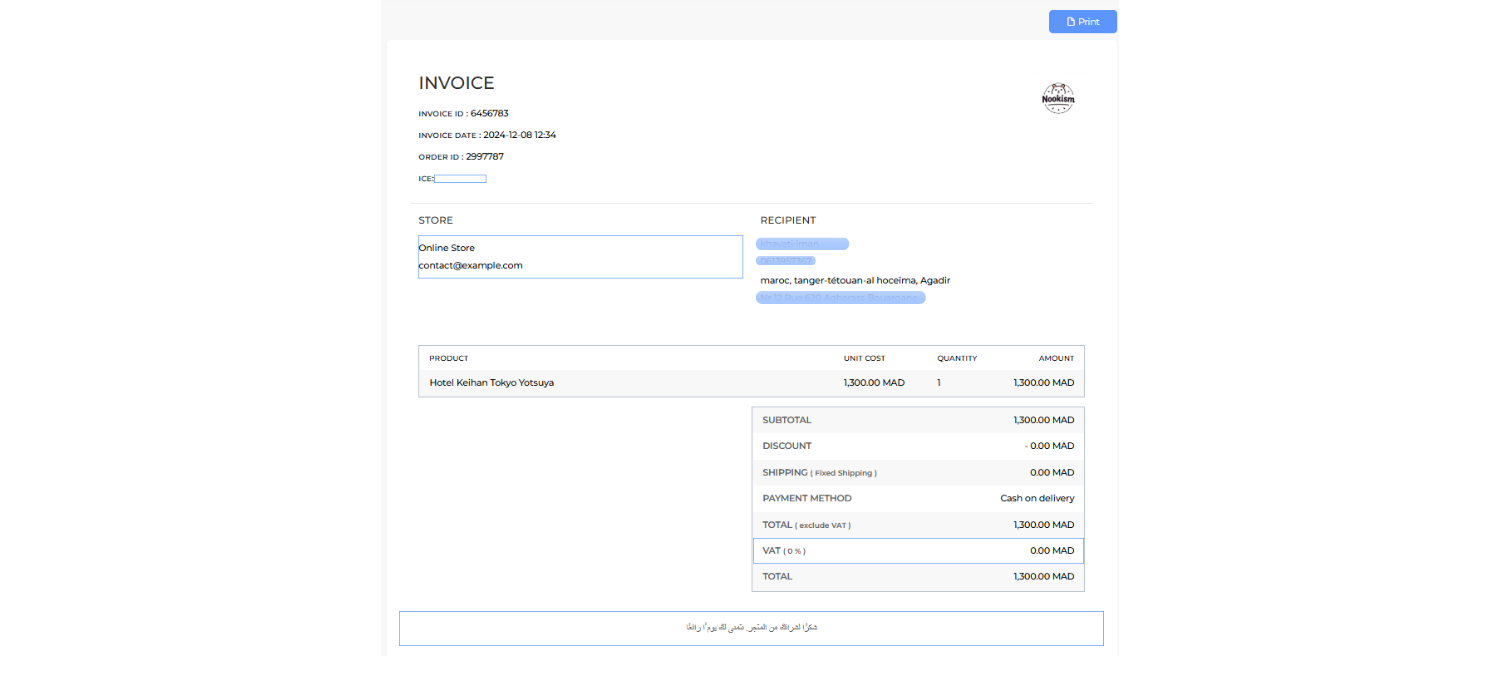
when viewing the details of an invoice, you can see the preview of the pdf file and print if you want