Manage your Applications
Overview
Storeino provides a streamlined way to manage applications for your online store. This guide explains how to activate, deactivate, access settings, and delete apps from your Storeino dashboard. we re also showcasing the different apps available in our marketplace.
Adding applications to Your Store
Enhance your Storeino store’s functionality by adding and activating applications. Watch the video guide for step-by-step instructions:
Navigate to the “Applications” Section:
- Go to the “Applications” section of your Storeino Manager dashboard to view available apps.
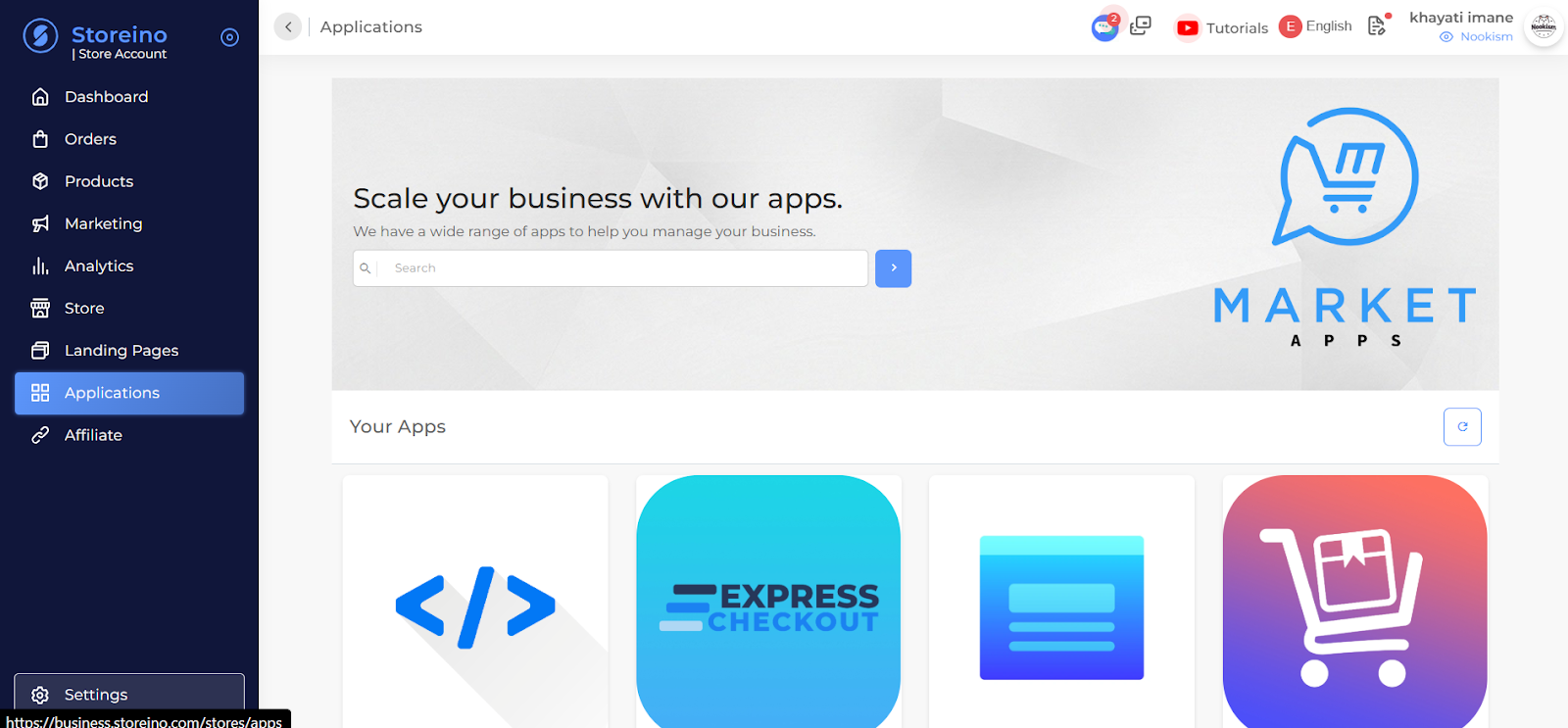
Adding New Apps
- Find New Apps:
- Scroll down to the New Apps section to view apps available for installation.
- Install:
- Select the desired app and activate it using the steps below.
Activating and Deactivating Apps
- Activate an App:
- Find the app in your list or in the New Apps section.
- Click the Activate button (a blue button labeled “Active”).
- The app will be activated and ready to use.
- Deactivate an App:
- Click on the Active button again to deactivate the app.
Accessing App Settings
- Open App Settings:
- Click on the app’s image or icon.
- You’ll be taken to the app’s settings interface.
- Adjust Parameters:
- Customize the app’s features as needed, such as configuring notifications, designs, or functionalities.
Deleting Apps
- Remove an App:
- Locate the app you want to delete.
- Click on the Delete option.
- Confirm by clicking Accept.
- Reinstalling Deleted Apps:
- Deleted apps are moved back to the New Apps section, where you can reinstall them if needed.