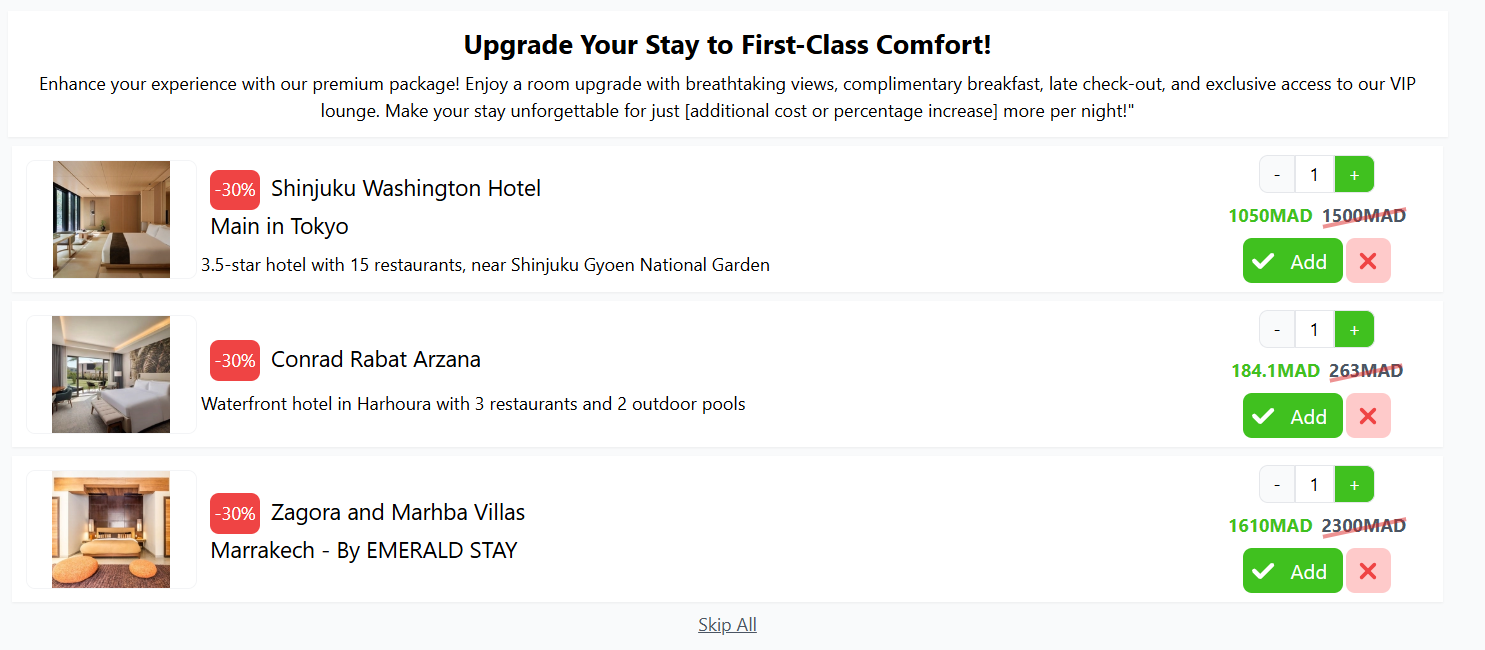
Creating an Upsell in Your Store
An upsell is a powerful marketing strategy that encourages customers to purchase additional products related to their original choice. This feature can help boost your sales by showcasing complementary products. Here’s how you can create an upsell in your Storeino store:
How to add upsell to your online store- Storeino
Step 1: Access the Upsell Section
- Log in to your Store account.
- Navigate to the Marketing section.
- Click on Upsells and then select New Upsell.
Step 2: Fill in the Upsell Details
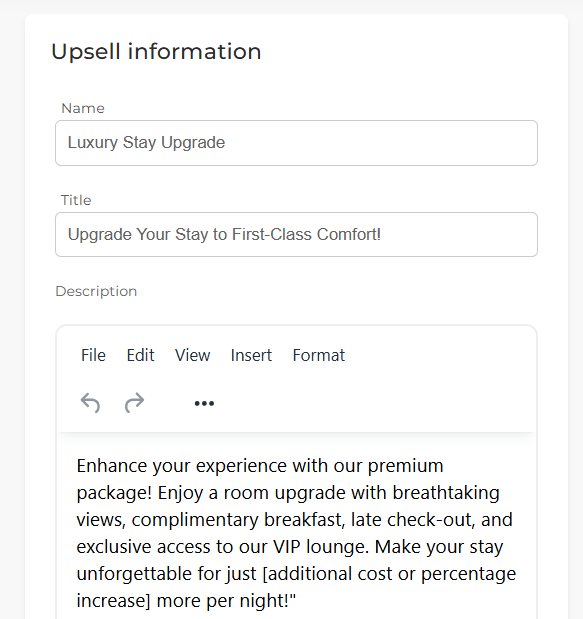
- Add a Name:
- This is for internal reference and will only be visible on your store’s dashboard.
- Add a Title:
- This will be visible to your customers.
- (Optional) Add a Description:
- Provide additional details about the upsell for your reference or for customer engagement.
Step 3: Choose the Products
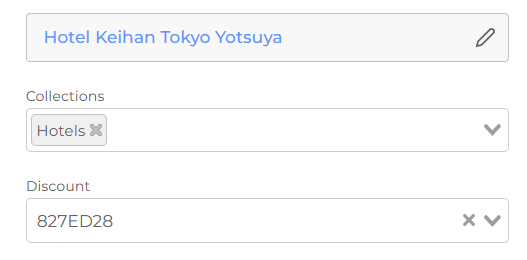
- Select the Product:
- Choose the main product on which the upsell will be applied (e.g., a speaker).
- Add Related Products:
- Pick complementary products that will be displayed to the customer (e.g., headsets).
Step 4: Apply a Discount
- If applicable, select a discount to encourage customers to purchase the upsell.
- Discounts can be created in advance using the discount creation feature.
Step 5: Confirm the Upsell
- After filling in all the required details, click Confirm to save the upsell.
- The upsell will now appear in the Upsells section with all the details you configured.
Step 6: Enable Upsell After Checkout (Optional)
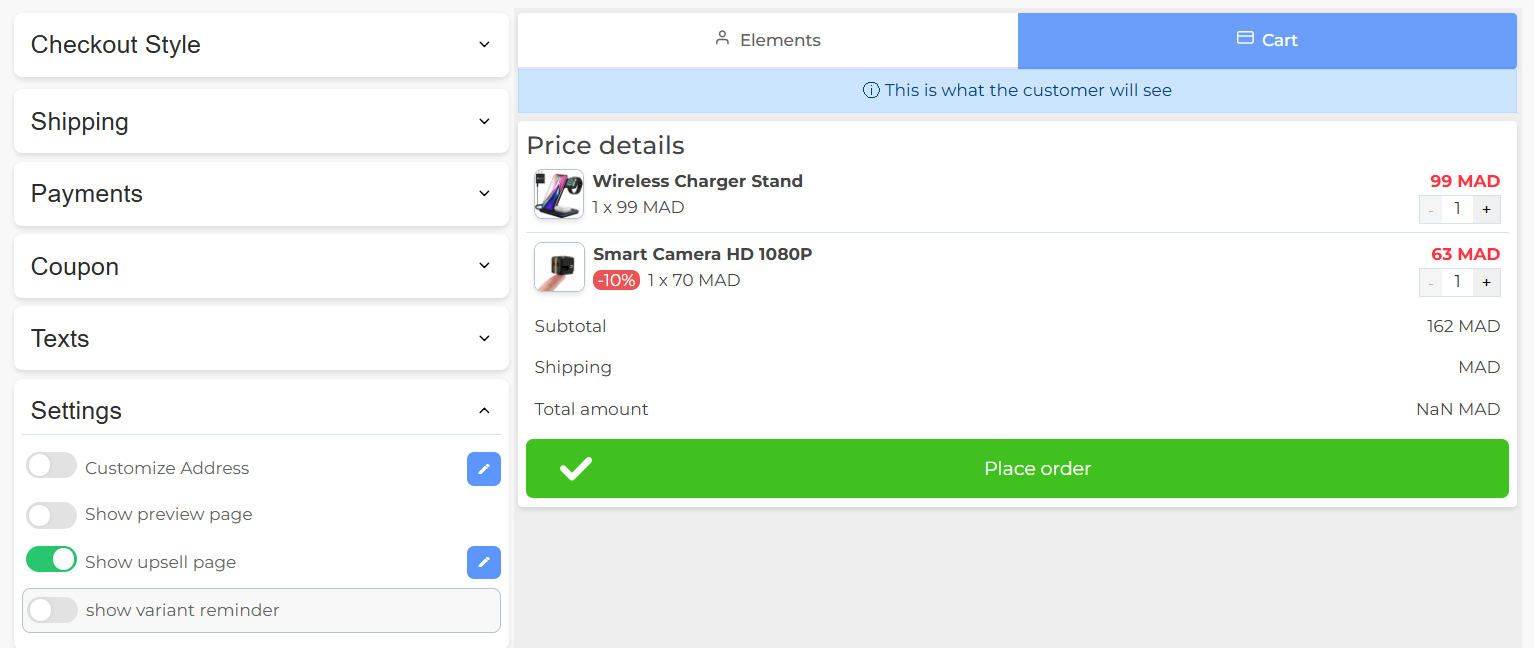
- Go to Settings > Checkout > Cart.
- Scroll down to Settings > Show Upsell Page After Checkout and enable it.
- Click Confirm to save the settings.
Step 7: Customize Upsell After Checkout
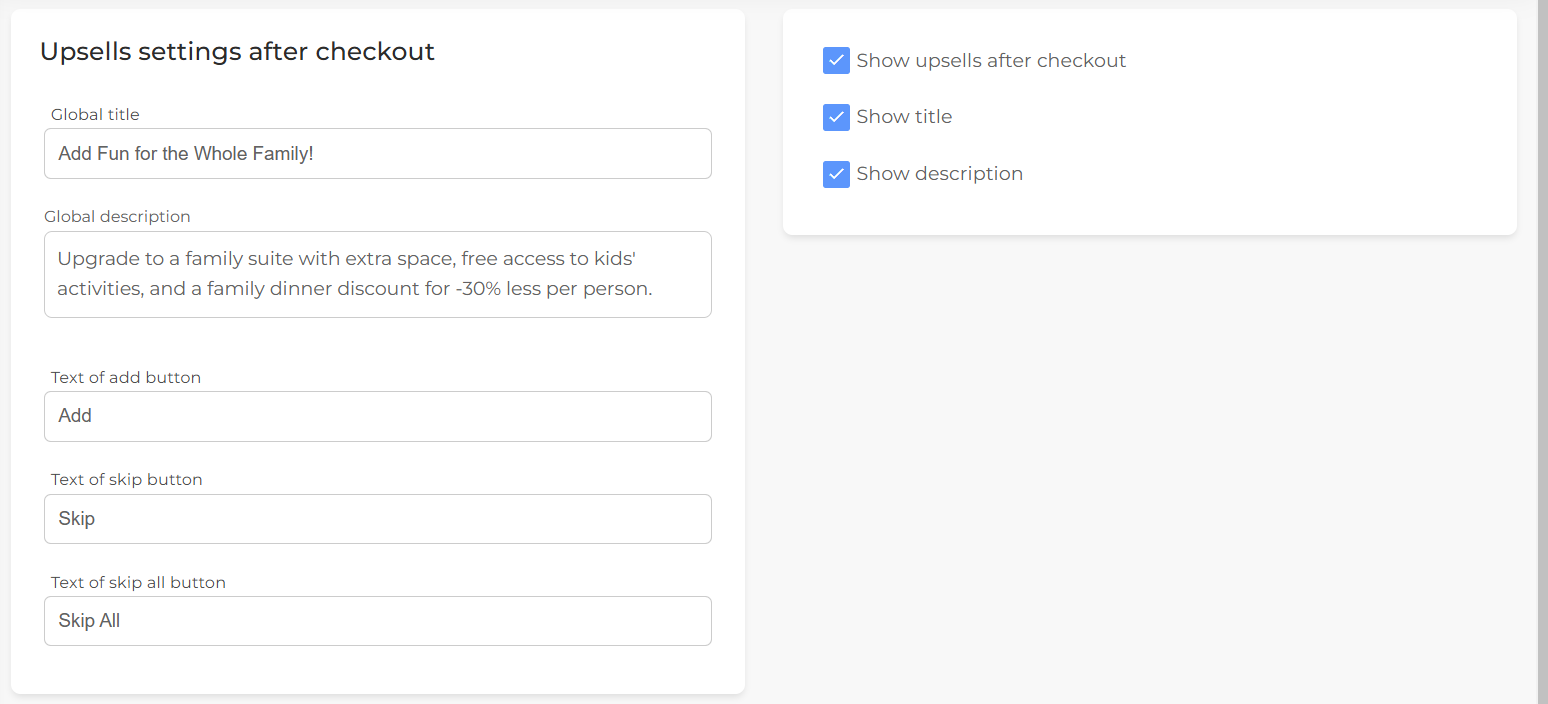
- Go back to the Marketing section and click on Upsell > Upsell Settings under Actions.
- Configure the following:
- Global Title: Title displayed on the upsell page after checkout.
- Description: Optional description for the upsell.
- Customize Button Text: Specify the labels for “Add,” “Skip,” and “Skip All” buttons.
- (Optional) Remove title or description visibility by unchecking the corresponding boxes.
- Click Confirm to save the settings.
Step 8: Test Your Upsell
- Place a test order in your store.
- Check the product page for upsell suggestions with discounts.
- If “Show Upsell After Checkout” is enabled, verify the upsell page appears after the checkout process.
- Test adding and skipping related products using the buttons.