Configuring Tax Settings in Storeino
Storeino simplifies tax management by automatically handling common sales tax calculations. However, you have the flexibility to set up tax overrides to comply with specific tax regulations or unique situations. Here’s how the tax system works and steps to configure it:
Key Features of Tax Settings
- Default Tax Rates:
- Storeino provides default sales tax rates, which are regularly updated.
- You should verify these rates to ensure they are accurate and applicable to your business.
- Tax Overrides:
- Customize tax settings to address unique laws or regional requirements.
- Override default rates if necessary for your store’s compliance.
- Tax Filing Reminder:
- Storeino does not automatically file your taxes. It’s your responsibility to ensure proper filing based on the configured settings.
Steps to Set Tax Settings
- Navigate to Tax Settings:
- Go to the Store Settings section in your dashboard.
- Access Checkout Settings:
- Select Checkout and navigate to the Cart section.
- Extend Payment Options:
- In the Payment section, click to expand the available options.
- Enter Your TVA (Tax Value Added):
- Locate the field labeled TVA Price and input your store’s tax rate.
- Confirm Your Changes:
- Once the correct tax rate is entered, click Confirm to save the settings.
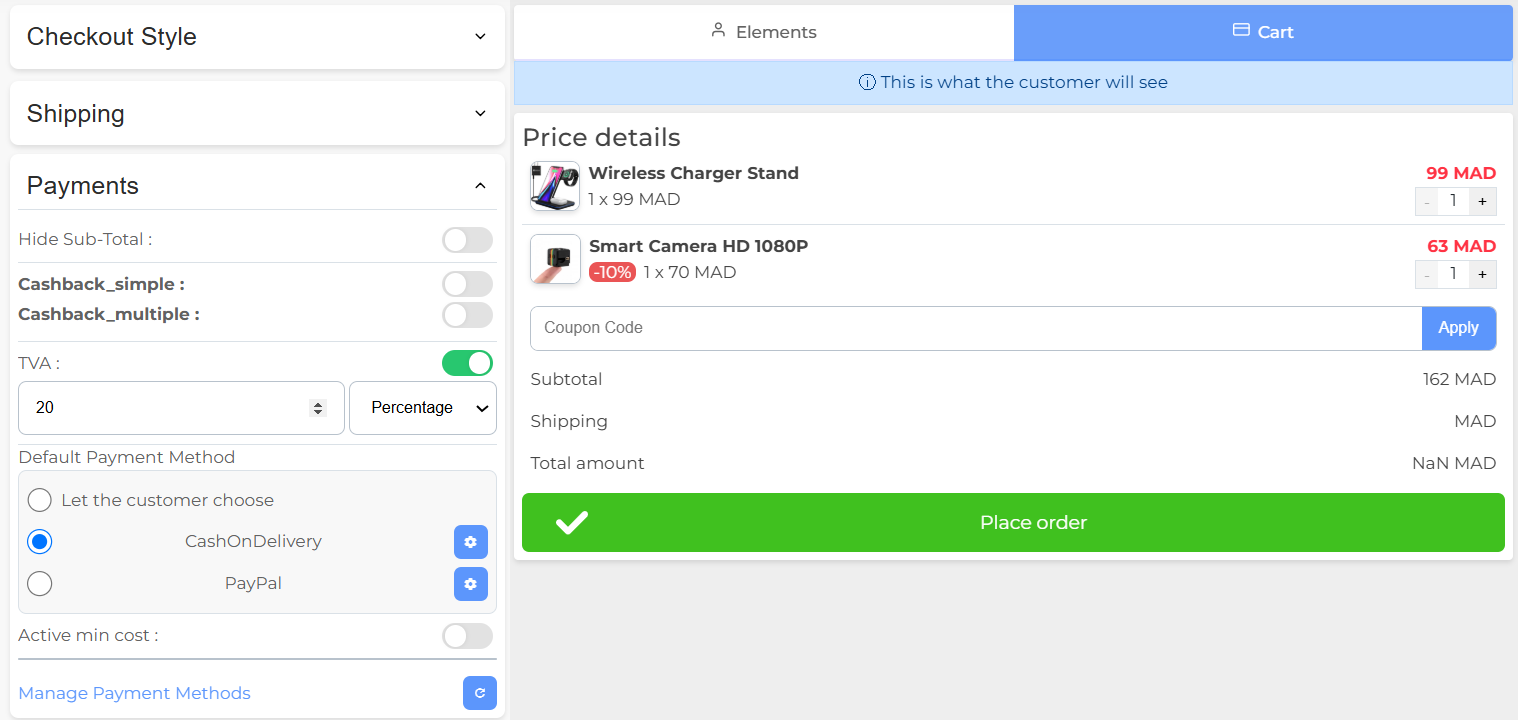
Now you’ll ensure that your store complies with tax requirements while providing accurate tax calculations to customers. Regularly review and update your tax settings to reflect any changes in regional tax laws.