Setting Up Payment Methods
Step 1: Access Payment Methods
- From your Storeino Dashboard, navigate to Settings > Payments section.
Step 2: Enable Payment Options
- Cash On Delivery: Toggle the switch to enable or disable this option for your customers.
- PayPal: Click “Add email” to link your PayPal account to the store. Enter your PayPal email and save.
- PayPal Credit Card: Click “Add your Client ID” to integrate PayPal’s credit card payment service. Enter your Client ID and save.
- Stripe: Click “Connect Account” to connect your Stripe account. Follow the prompts to log in and authorize the integration.
- CMI (Centre Monétique Interbancaire): For stores in Morocco, click “Add your Merchant ID and key” to integrate CMI. Enter the required credentials provided by CMI.
Step 3: Test the Payment Methods
- After activating the payment methods, test them by simulating a purchase to ensure they are working properly.
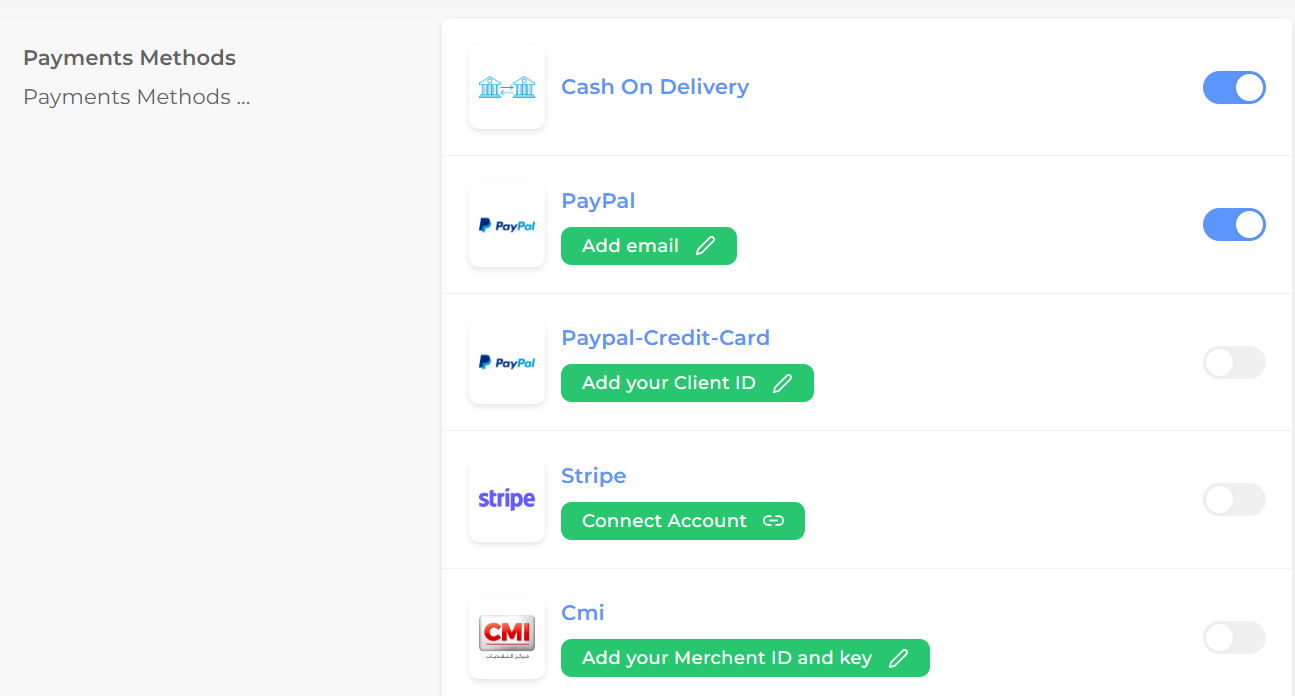
Payment Methods section of a Storeino dashboard. It includes the following payment options that can be enabled for a store:
- Cash On Delivery – This payment method can be activated by toggling the switch.
- PayPal – A PayPal account needs to be linked by adding the email associated with the PayPal account.
- PayPal Credit Card – This option requires the addition of a Client ID to link to the store.
- Stripe – A Stripe account can be connected by clicking the “Connect Account” button, which will redirect to the Stripe login page.
- CMI (Centre Monétique Interbancaire) – For Moroccan stores, this option allows the merchant to add their Merchant ID and key to enable CMI as a payment method.