Storeino Dashboard
Overview
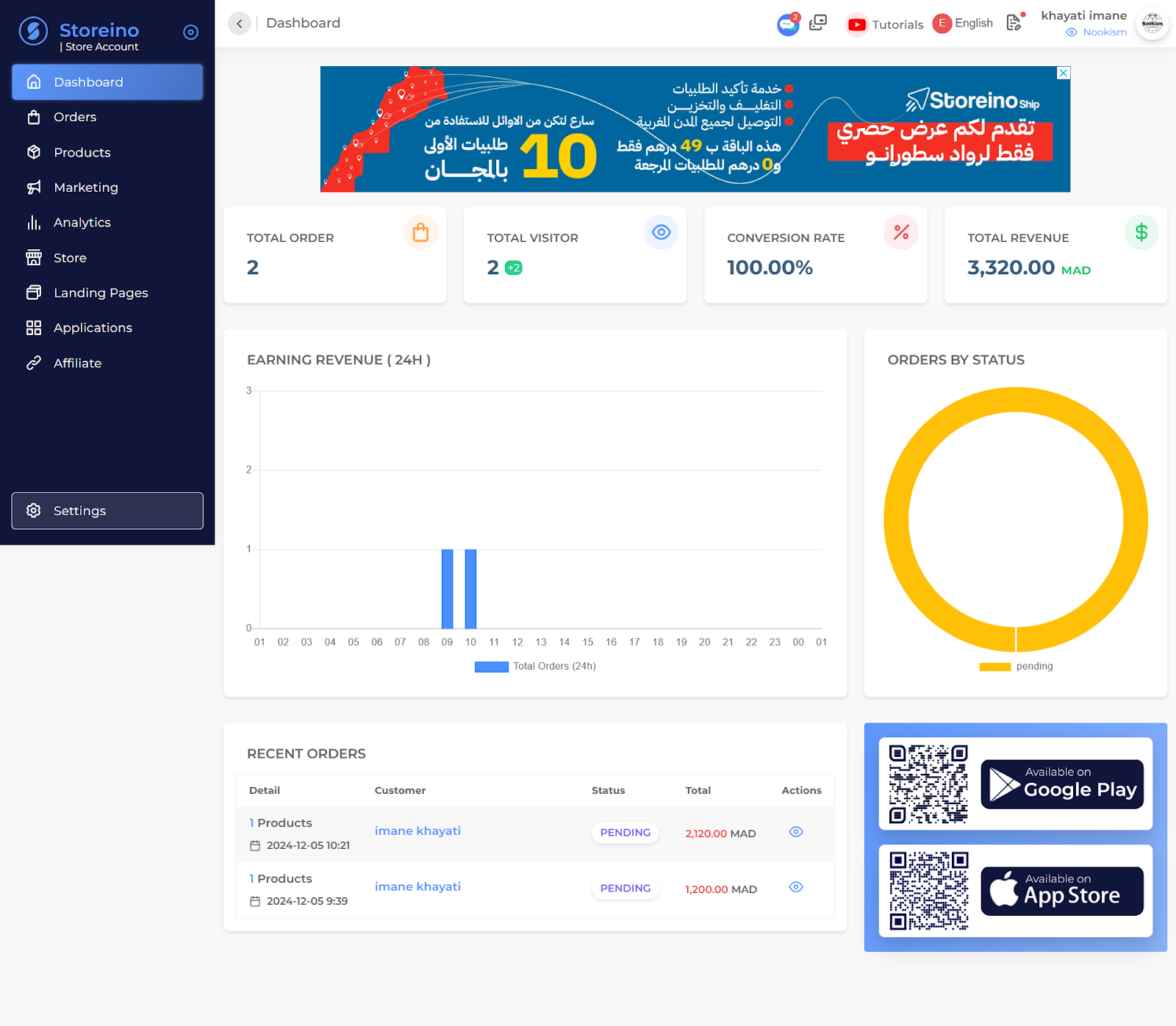
The Storeino Dashboard provides a clear summary of your store’s performance and activity at a glance. It is divided into multiple sections, each offering key metrics, analytics, and actionable insights.
Sections Breakdown:
1. Top Navigation Bar
- User Settings: Access your profile and settings (e.g., username).
- Language Option: Switch between languages (e.g., English).
- Help & Tutorials: Quick access to tutorials for better store management.
2. Key Performance Indicators (KPIs)
This section displays quick stats about the store’s performance:
- Total Orders: The number of orders (e.g., 2).
- Total Visitors: The number of visitors to your store (e.g., 2).
- Conversion Rate: Percentage of visitors who made a purchase (e.g., 100%).
- Total Revenue: Total sales revenue (e.g., 3,320.00 MAD).
3. Earning Revenue (24H)
A graph displaying order trends over the past 24 hours:
- Blue bars represent the number of orders during specific time intervals.
- Easily visualize hourly sales activity.
4. Orders by Status
A pie chart indicating the current order statuses:
- Pending Orders: Percentage and count of orders that are yet to be processed (e.g., 100% are pending).
5. Recent Orders
A detailed list of the most recent transactions, including:
- Details: Number of products purchased.
- Customer Name: Name of the customer.
- Status: Current status of the order (e.g., Pending).
- Total Amount: Value of the order (e.g., 2,120.00 MAD, 1,200.00 MAD).
- Actions: Options to manage or view details of each order.
6. Promotional Banner
A top banner showcasing promotions or announcements.
- Example: “Get 10 orders free with Storeino Ship” (highlighted offer).
7. Mobile App Integration
Direct links to download the Storeino mobile app:
- Google Play QR Code: Download the Android app.
- App Store QR Code: Download the iOS app.
Use Cases:
- Monitor Business Performance: Track KPIs such as revenue and conversion rates.
- Manage Orders: Review the status and details of recent orders.
- Analyze Trends: Use the 24-hour revenue graph to identify peak sales times.
- Access Support: Use tutorials for onboarding or troubleshooting.
- Expand Mobile Presence: Promote Storeino’s mobile app for on-the-go management.
Key Features in the Chatlive app:
- User Inquiry
- Support Response
- Chat Input Options
- Text Field: Users can type their questions or requests.
- Voice Input Button: Allows users to send voice messages.
Tutorials Section in Storeino Dashboard
Overview
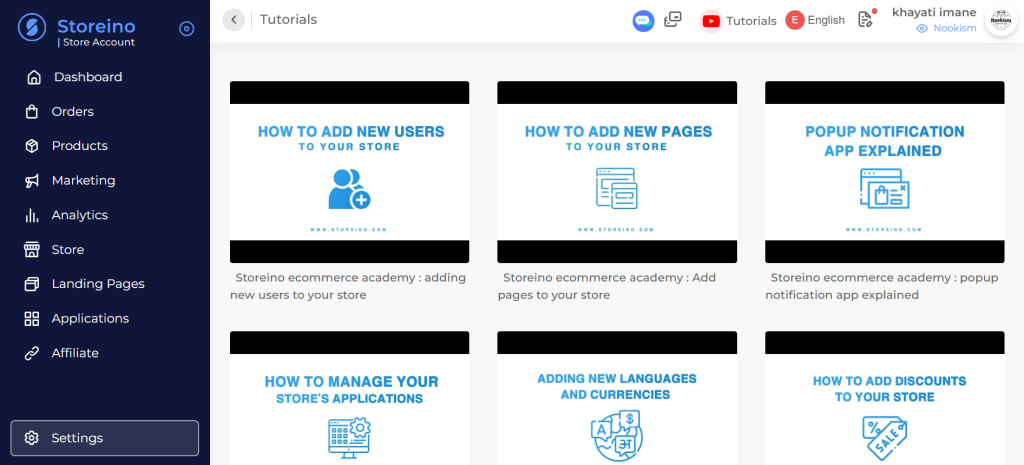
The Tutorials Section is a dedicated area within the Storeino dashboard designed to help users learn and master various aspects of managing their online store. It features a collection of video guides that provide step-by-step instructions on specific topics.
Key Features Displayed in the Image:
- Tutorial Titles
The tutorials cover various topics, such as:- How to Add New Users to Your Store: Guidance on managing user accounts.
- How to Add New Pages to Your Store: Instructions for creating and managing custom pages.
- Popup Notification App Explained: A detailed walkthrough of setting up and using the popup notifications app.
- How to Manage Your Store’s Applications: Tutorials on app management.
- Adding New Languages and Currencies: Steps to make your store multilingual and set up multi-currency options.
- How to Add Discounts to Your Store: Guide to setting up discounts and promotions.
- Video Thumbnails
Each tutorial is displayed as a thumbnail, with the title and a brief description of the topic. - Navigation Options
- A left-side menu with key sections such as Dashboard, Orders, Products, Marketing, etc., ensures easy navigation.
- Top Bar includes tools to change language, access user profiles, and open tutorials.
Steps to Access and Use Tutorials:
- Navigate to Tutorials Section
- Click on “Tutorials” in the top bar or find it in the Storeino dashboard.
- Select a Video
- Browse through the available tutorials.
- Click on a video thumbnail to play and watch the guide.
- Follow the Instructions
- Watch the tutorial and replicate the steps demonstrated in your store’s dashboard.
- Revisit as Needed
- Tutorials can be replayed or revisited whenever required.
The Tutorials Section helps users become proficient in managing their store without external support. It offers a wide Range of Topics and Covers essential features and advanced functionalities, all while learning at their own pace with the ability to revisit tutorials anytime.